AIDesigner vs Figma is the comparison I get asked about most, usually phrased as some version of “do I still need Figma if AI can just generate the design?” The honest answer depends entirely on who you are and what you ship.
Here’s the honest version. For the prompt-to-production workflow this article is about, AIDesigner is the tool I’d recommend without hesitation — it is built specifically for getting from an idea to finished, shippable output fast. But I’m going to be just as clear about the places where Figma genuinely wins, because those places exist and pretending otherwise would waste your time.
If you want the one-line version: choose AIDesigner when you need finished UIs, code, and live pages fast; choose Figma when you are a design team maintaining a shared system and handing structured specs to developers. Most people reading this are in the first camp. Let me show you why.
For broader context beyond this head-to-head, our roundup of the best Figma alternatives covers the full field, and our guide to the best AI UI design tools ranks the AI-first contenders.
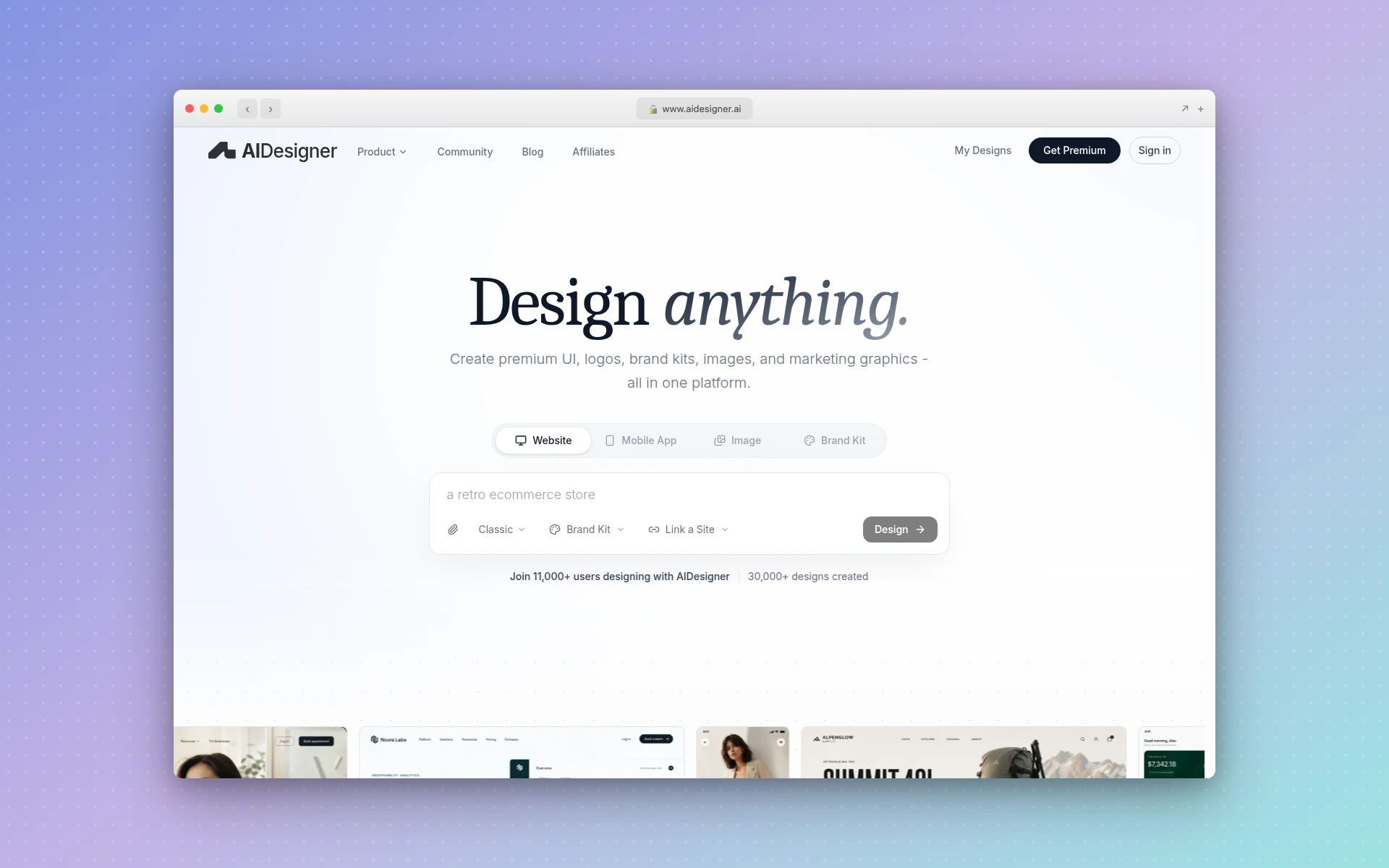 AIDesigner generates production-ready UIs, websites, and mobile screens from a text prompt. Image generated and captured via AIDesigner.
AIDesigner vs Figma: Which Is Better?
AIDesigner is better for turning an idea into finished output: it generates complete UIs, websites, and mobile screens from a text prompt, exports clean HTML and CSS, and publishes live pages directly. Figma is better for collaborative, hand-built design systems and structured developer handoff. If you measure success by shippable output, AIDesigner wins; if you measure it by a maintained shared design file, Figma wins.
| Feature | AIDesigner | Figma |
|---|---|---|
| Best For | Founders, marketers, developers shipping fast | Design teams maintaining shared systems |
| Core Workflow | Prompt to production output in seconds | Manual, frame-by-frame canvas design |
| Code Export | Clean HTML and CSS built in | Dev Mode specs and snippets (not full pages) |
| Live Publishing | Yes, one-click to a custom subdomain | No (prototypes and specs only) |
| AI Generation | Native: UI, sites, mobile, images, brand kits | AI credits for assist features inside the canvas |
| Real-Time Collaboration | Single-user focused | Best-in-class multiplayer (industry standard) |
| Plugin Ecosystem | Focused, native toolset | Huge, mature community ecosystem |
| Agent / MCP Support | Native MCP server for Claude Code, Cursor, more | None (manual only) |
| Free Tier | 5 lifetime credits, no card | Free Starter plan (3 files) |
| Paid Entry Price | $25/mo (100 generations) | $16/mo per Full seat (Professional, monthly) |
The rest of this article unpacks each row honestly, including a full “where Figma wins” section, so you can pick the right tool for your actual situation instead of mine.
What Is AIDesigner?
AIDesigner is an AI-first design platform. Instead of dragging frames onto a canvas, you describe what you want in plain language and AIDesigner generates a polished, production-ready interface in seconds. It handles website designs, mobile app screens, landing pages, and individual UI components, and it exports clean HTML and CSS so the output is shippable, not just a picture of a design.
It goes further than one-off generation. AIDesigner can save reusable brand kits (a palette, typography mood, imagery, and art direction) so every future design stays visually consistent. Kits come from a 3x3 variation board or get pulled automatically out of any existing site’s URL. It also generates standalone images at GPT Image 2–class quality, steered by prompt presets fine-tuned for UI and product design, extracts embedded assets out of a generated design into reusable canvases, and exposes everything to coding agents through an MCP server.
The shorthand: Figma is where you draw a design, and AIDesigner is where you describe one and get something you can ship.
What Is Figma?
Figma is the collaborative design tool that became the industry standard over the last decade. It is a browser-based canvas where designers build interfaces frame by frame using layers, components, auto-layout, and constraints. Its defining feature is real-time multiplayer editing: multiple people can work in the same file simultaneously, with cursors visible, which is why most design teams standardized on it.
Figma also owns the developer handoff stage through Dev Mode, which lets developers inspect a design’s measurements, spacing, color tokens, and typography, and pull CSS, iOS, and Android code snippets. Importantly, Dev Mode is a specification viewer, not a full code generator. It hands developers accurate specs to build from, not a finished page.
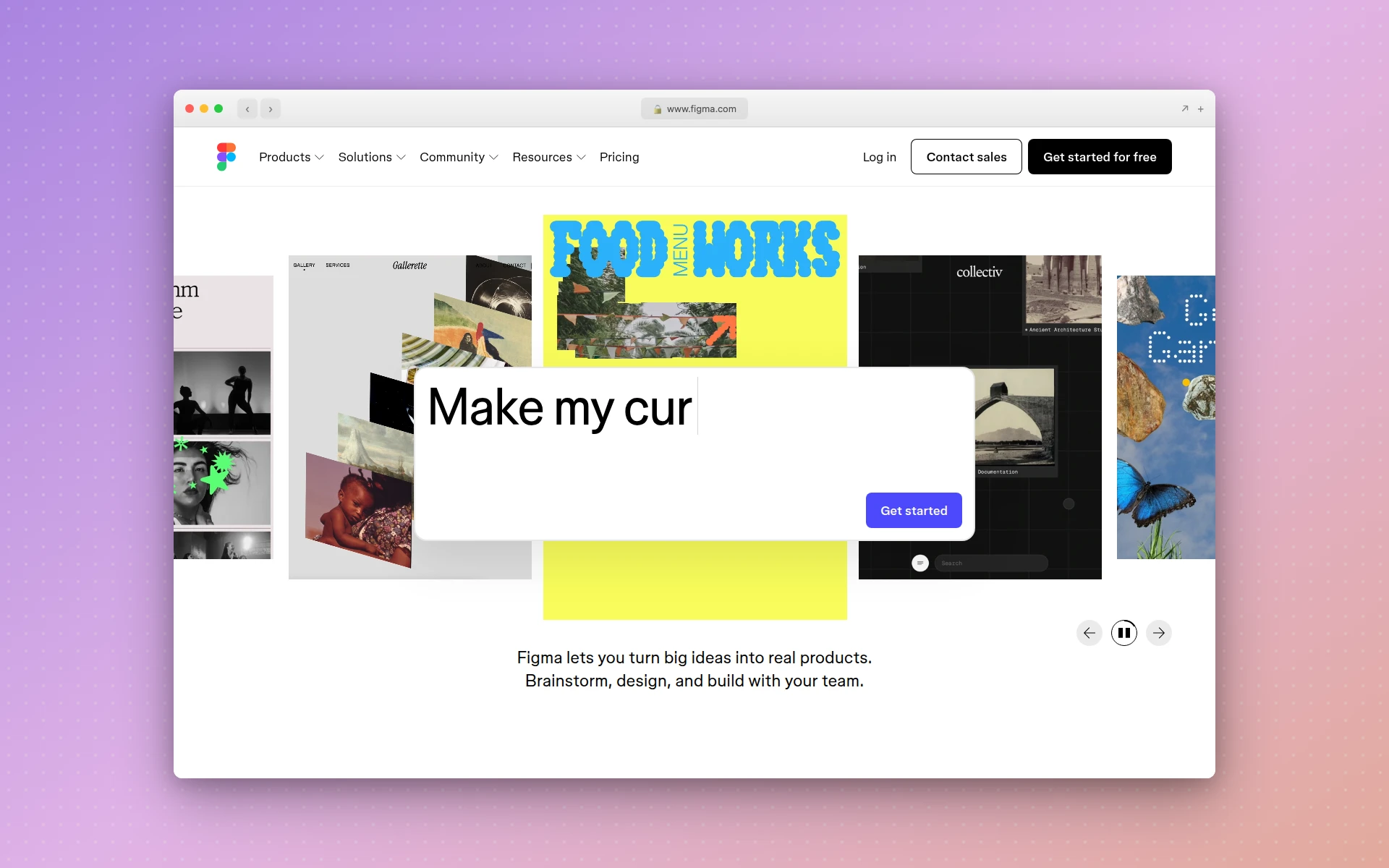 Figma’s collaborative canvas remains the industry standard for design teams.
AIDesigner vs Figma: Speed and Workflow
The single biggest difference is how you get to a design. In AIDesigner, you write a prompt and a complete, responsive UI appears in seconds. In Figma, you build that same UI yourself, element by element. For a landing page, that is the difference between a 30-second generation and an afternoon of layout work.
I tested this directly while writing this comparison. I gave both tools the same brief: a hero section, feature grid, pricing table, and footer for a fictional SaaS product. In AIDesigner I had a full responsive draft with real HTML and CSS in under a minute. In Figma I had a blank canvas and a decision about whether to start from a community template or build from scratch. That gap is the entire value proposition of AI-first design, and it is why our step-by-step dashboard UI guide leans on generation rather than manual frames.
The tradeoff is control. Figma gives you pixel-level command over every element because you placed every element. AIDesigner gives you a strong starting point you then refine with follow-up prompts or by editing the exported code. If your job is exploring twenty precise variations of a button state, Figma’s manual control is an advantage. If your job is shipping a page this week, generation wins.
AIDesigner vs Figma: Code and Publishing
This is where the two tools stop overlapping. Figma produces designs and prototypes; getting to a live, coded website means a separate handoff and build step. AIDesigner produces clean HTML and CSS as part of generation, and can publish the result to a live custom subdomain with one click.
That matters because the Figma-to-developer handoff is where most timelines die. Dev Mode makes that handoff smoother than the old “redline screenshot” era, but a developer still has to translate the spec into a working build. Our breakdown of the best Figma to code tools exists precisely because that translation step is a known bottleneck. AIDesigner removes it by generating the code in the first place.
If your end goal is a shipped page rather than a design file, AIDesigner’s built-in code export and one-click publishing collapse three steps (design, handoff, build) into one.
Why AIDesigner Is the AI Design Tool I Use Every Day
For the AI-first workflow this article is about, AIDesigner is genuinely the tool I reach for first. Here is what it does that a manual canvas does not.
Prompt-to-production output. You describe a landing page, a dashboard, or a mobile app screen, and AIDesigner returns a polished, responsive design with real HTML and CSS in seconds. No frames, no auto-layout, no constraints to wrestle with.
Saved brand kits, two ways. Build a kit from a 3x3 brand variation board, or auto-extract one from any existing website URL: palette, typography, imagery, and art direction. Save it once and every future generation, including images and website concepts, stays on-brand automatically. This is the consistency layer most AI generators lack, and it is closely tied to the ideas in our guide to what a design system is.
Native image generation and asset extraction. AIDesigner generates images at GPT Image 2–class quality, tuned with UI-specific prompt presets (quality tiers, multiple aspect ratios, reference-based editing) and can extract up to 12 embedded photos, logos, illustrations, or textures out of a generated design into separate, reusable canvases. One generation becomes a small library of brand-consistent components.
An MCP server for coding agents. This is the part Figma has no answer to. AIDesigner ships an MCP server so coding agents like Claude Code, Cursor, Windsurf, and VS Code can generate and refine designs, create brand kits, and drop assets directly into your build. If you live in an agent-driven workflow, see our guide on designing UIs with Claude Code for how this fits together.
Mobile and desktop in one place. Generate at a 1440px desktop viewport or a 430px mobile viewport without switching tools, which is why AIDesigner shows up at the top of our best AI mobile app design tools roundup.
Add it up and the pattern is clear: AIDesigner is built to produce finished, on-brand, shippable output, while Figma is built to let a team craft a design by hand. Those are different jobs.
Where Figma Genuinely Wins
I am not going to pretend Figma is obsolete, because it is not, and you would catch me lying the moment you opened it. There are three areas where Figma is clearly the better tool, and if your work lives in them, you should stay on Figma.
Real-time collaboration. Figma’s multiplayer canvas is the best in the industry, full stop. Multiple designers, product managers, and engineers can work in the same file at the same time, leave comments, and watch each other’s cursors. For a design team, that shared live workspace is irreplaceable, and AIDesigner is not trying to replicate it.
The plugin and community ecosystem. Figma has years of accumulated plugins, templates, UI kits, and community files. Need an icon set, a charting plugin, or a pre-built design system to fork? Figma’s library is enormous and mature. AIDesigner’s toolset is focused and native, not a sprawling marketplace.
Dev Mode and design-system management at scale. For organizations maintaining a large, governed design system, Figma’s Dev Mode handoff (inspectable specs, measurements, CSS/iOS/Android snippets) plus its org-grade permissions and shared libraries are deep and battle-tested. If your design system is the product of dozens of people, Figma is the right home for it.
None of this is faint praise. If you are a 15-person design org, Figma is almost certainly your center of gravity, and AIDesigner is a fast on-ramp that feeds into it, not a replacement for it.
AIDesigner vs Figma: Pricing Compared
Pricing is where the two tools reveal their different philosophies. AIDesigner bills by output volume (how many designs you generate). Figma bills by people (how many seats you need). That distinction matters more than the raw numbers.
| Plan | AIDesigner | Figma |
|---|---|---|
| Free | 5 lifetime credits, no card | Starter: 3 files, limited AI credits |
| Entry paid | $25/mo for 100 generations | $16/mo per Full seat (Professional, monthly) |
| Mid tier | $50/mo for 200 generations | $55/mo per Full seat (Organization, annual) |
| Top tier | Scales to $2,250/mo (10,000 generations) | $90/mo per Full seat (Enterprise, annual) |
| Billing basis | Per design generated | Per person (seat) |
A few honest notes. Figma’s free Starter plan is genuinely useful for solo exploration, and each paid seat includes a monthly allotment of AI credits. Figma’s Professional Full seat is $16/month billed monthly per the official Figma pricing page; Organization and Enterprise Full seats are $55 and $90 and are billed annually only. AIDesigner’s Pro starts at $25/month for 100 credits and scales up the tiers, with yearly billing saving roughly 17%. One credit equals one generation; reference-mode designs that clone or enhance a URL cost two credits.
The practical read: if you have one person who needs to ship a lot of designs, AIDesigner’s volume pricing is efficient. If you have many people who each need to live in the same design file all day, Figma’s per-seat model is the structure built for that. For a deeper pricing breakdown across the whole category, see our best AI website generators comparison.
Switching From Figma: What to Know
If you are thinking about moving prompt-to-output work from Figma to AIDesigner, set expectations correctly. There is no one-click import that pulls a Figma file into AIDesigner, and no export that writes a native Figma file back out. I want to be explicit about that so you do not plan a migration around a feature that does not exist.
What actually works is a parallel workflow rather than a file conversion. You describe the screen you want in AIDesigner, optionally pointing it at an existing site or reference for visual direction, and it generates a fresh, production-ready version with real code. You are recreating intent, not transferring layers.
For most people switching, the right model is this: keep Figma for collaborative, hand-crafted system work if you need it, and use AIDesigner as the fast path from idea to shippable output. Save a brand kit in AIDesigner early so everything you generate stays consistent, and you get the speed of AI generation without losing visual coherence. If you are evaluating the broader switch, our Figma alternatives roundup lays out every option, AI-first and traditional.
Who Should Use AIDesigner vs Figma
Use AIDesigner if you are: a founder building an MVP, a marketer shipping landing pages, a developer who wants generated code and live pages, a non-designer who needs professional UI without learning the craft, or anyone working inside a coding agent who wants design generation through MCP. AIDesigner is the tool I’d point all of these people to first.
Use Figma if you are: a member of a design team that collaborates live in shared files, an organization maintaining a large governed design system, or a designer who depends on a specific plugin ecosystem and structured Dev Mode handoff. Figma earned its standard status here, and it keeps it.
Use both if you want the speed of AI generation for first drafts and shippable output, plus Figma’s collaborative canvas for the work that genuinely needs many hands. They are not mutually exclusive, and plenty of teams run exactly this split.
The Verdict
For the workflow this article is about (going from an idea to finished, on-brand, shippable output), AIDesigner is the tool I’d recommend, and not as one option among many. It generates production-ready UIs from prompts, exports clean code, publishes live, ships brand kits and image generation, and plugs into coding agents through its MCP server. That is a different and faster job than building frame by frame.
Figma remains the right answer for collaborative design teams and large design systems, and I’d tell you to stay on it if that is your world. But if you are a founder, marketer, developer, or non-designer who measures success by shipped output, the AI-first path wins.
You can try AIDesigner free: 5 lifetime credits, no card required. Pro starts at $25/month for 100 generations, scaling as you grow, with yearly billing saving roughly 17%. Get started with AIDesigner and generate your first design in seconds.
Frequently Asked Questions
Is AIDesigner better than Figma?
AIDesigner is better if you want to go from a text prompt to a finished UI, website, or mobile screen with clean HTML and CSS code in seconds, and publish it live without a separate host. Figma is better for hand-crafted design systems, real-time team collaboration, and structured developer handoff. For solo founders, marketers, and developers who need production output fast, AIDesigner wins. For large design teams maintaining a shared system, Figma still wins.
Can AIDesigner replace Figma?
AIDesigner can replace Figma for prompt-to-output work: generating landing pages, app screens, brand kits, and marketing imagery, then exporting code or publishing live. It does not replace Figma’s real-time multiplayer canvas, its mature plugin ecosystem, or its Dev Mode handoff for teams that build manually frame by frame. Many people use AIDesigner to create a draft fast, then refine it, rather than abandoning Figma entirely.
Does AIDesigner export to Figma files?
No. AIDesigner does not currently export native Figma files, and there is no one-click import from a Figma file into AIDesigner. AIDesigner outputs clean HTML and CSS code, live published pages, and reusable image and brand-kit assets. If you need editable Figma layers, you keep working in Figma; if you need shippable code and live pages, AIDesigner takes you there directly.
How much does AIDesigner cost compared to Figma?
AIDesigner has a free tier with 5 lifetime credits and no card required, with Pro starting at $25 per month for 100 design generations. Figma has a free Starter plan, then charges per seat: $16 per month for a Full seat on Professional (monthly), $55 on Organization, and $90 on Enterprise, both billed annually. AIDesigner bills by output volume; Figma bills by people.
Is Figma still worth it in 2026?
Yes, Figma is still worth it in 2026 for design teams that need real-time collaboration, a mature plugin and community library, and a structured design-to-developer handoff through Dev Mode. It remains the industry standard for maintaining design systems at scale. It is less worth it if you are a solo builder who mostly needs finished output fast, where an AI-first tool like AIDesigner is quicker and cheaper.
Which is better for non-designers, AIDesigner or Figma?
AIDesigner is better for non-designers. You describe what you want in plain language and it generates a polished, production-ready design, so you never touch a frame, a constraint, or an auto-layout setting. Figma assumes design fluency: layers, components, and the CSS box model. Founders, marketers, and developers without design training get usable results from AIDesigner far faster.