TL;DR: Figma to code tools have matured significantly, but output quality still varies. Anima leads for plugin-based conversion with React/Vue/HTML support. Builder.io Visual Copilot is strongest for component mapping and multi-framework output, while Locofy is useful for React and Next.js teams that want more guided control. Here are 8 tools worth evaluating.
What Are the Best Figma to Code Tools?
The best Figma to code tools in 2026 are Anima, Builder.io Visual Copilot, Locofy, Figma Dev Mode, TeleportHQ, Zeplin, and DhiWise. These tools convert Figma designs into React, HTML, Vue, and other framework code through plugins or standalone platforms, reducing manual frontend development time by 30-60%.
The Figma to Code Problem (And Why It Still Matters)
Every design team hits the same wall. You spend days perfecting a Figma mockup --- spacing is pixel-perfect, components are organized, the design system is consistent. Then you hand it off to developers, and the build takes twice as long as expected because translating visual designs into clean, maintainable code is genuinely hard. (If you are earlier in that process, our guide to creating a website mockup covers the steps before this one.)
The design-to-development handoff has been one of the biggest bottlenecks in product development for years. According to a 2024 Zeplin survey, 67% of developers say they spend significant time recreating designs from scratch rather than working from generated code. That is wasted effort.
Figma to code tools aim to close this gap. They range from Figma plugins that export component code directly from your designs, to standalone platforms that convert entire design files into working applications. Some are free. Some cost hundreds per month. And the code quality ranges from “decent starting point” to “nearly production-ready.”
I have tested eight of the most popular options to help you figure out which one actually saves time rather than creating new problems.
Quick Comparison: Figma to Code Tools 2026
| Tool | Type | Output Formats | Starting Price | Best For |
|---|---|---|---|---|
| Anima | Figma Plugin + Platform | React, Vue, HTML/CSS | Free / $24/mo | All-around Figma to code conversion |
| Builder.io Visual Copilot | Figma Plugin | React, Vue, Svelte, Angular, + more | Free / Custom | Enterprise teams with component libraries |
| Locofy | Figma Plugin + Platform | React, Next.js, HTML/CSS | Free / Custom | Large-scale design-to-code automation |
| Figma Dev Mode | Built-in Figma Feature | CSS, iOS (Swift), Android (Kotlin) | Included in paid plans | Developer handoff and code inspection |
| TeleportHQ | Figma Plugin + Builder | HTML, React, Vue, Angular | Free / $15/mo | Low-code website building from Figma |
| Zeplin | Standalone Platform | CSS, Swift, Kotlin, XML | Free / $8/mo | Design delivery and handoff management |
| DhiWise (Rocket) | Standalone Platform | React, Flutter, Next.js | Free / Custom | Full-stack app generation from Figma |
| AIDesigner | AI Design Platform | HTML/CSS, React, Tailwind | Free / $25/mo | Skipping the Figma-to-code step entirely |
The 8 Best Figma to Code Tools
1. Anima
Best for: All-around Figma to code conversion with multiple framework support
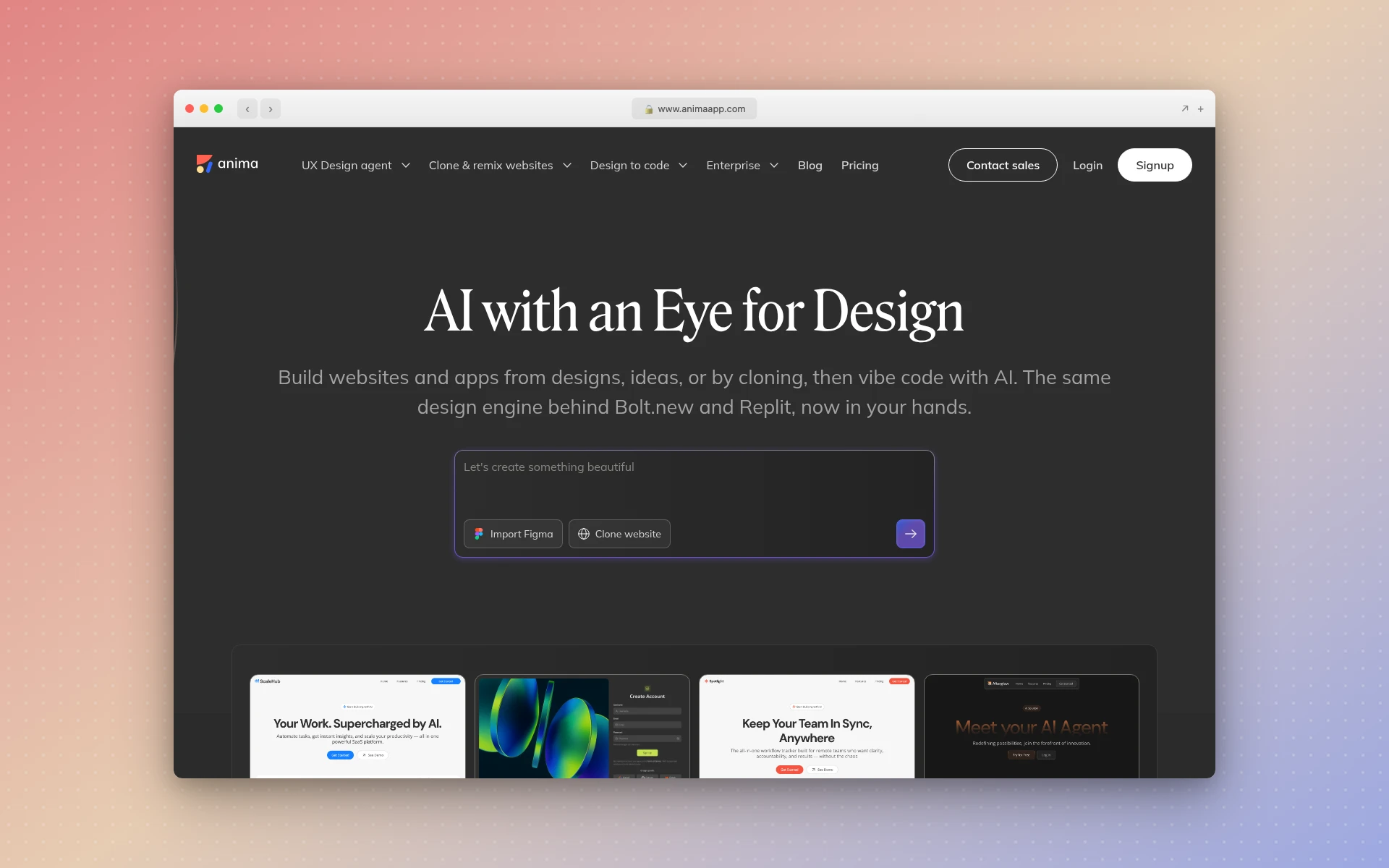 Anima converts Figma designs into production-ready React, Vue, and HTML code.
Anima has been in the Figma to code space longer than most competitors, and it shows. The tool works as both a Figma plugin and a standalone platform, converting designs into React, Vue.js, and HTML/CSS code.
What sets Anima apart from simpler export tools is its design intelligence. The plugin analyzes your Figma layers and auto-detects components, responsive breakpoints, and interactive states rather than just doing a flat visual-to-code dump. The output includes proper semantic HTML, flexbox and grid layouts, and framework-specific component structures.
Anima has also evolved beyond pure Figma-to-code. The platform now supports generating applications from text prompts, URLs, and screenshots, positioning it as a design-aware AI coding agent. This is a smart play --- it means you can use Anima whether you start in Figma or not.
Key features:
- Figma plugin with direct code export to React, Vue, and HTML/CSS
- Auto-detection of components and responsive breakpoints
- Interactive prototype-to-code conversion (animations, hover states)
- Text prompt and URL-based code generation
- One-click deployment to live URLs
- Collaboration and commenting built in
Pricing: Free plan available. Pro starts at $24/month. Business plans at $150/month.
What I like: Anima produces the most consistent code quality across multiple frameworks. The React output uses proper component patterns, and the HTML/CSS is clean enough to work with directly. The 1.5 million user base speaks to its reliability.
What could be better: The free tier is limited. Complex Figma designs with nested auto-layouts sometimes need manual cleanup in the exported code. The AI generation features are newer and not as polished as the core Figma-to-code workflow.
2. Builder.io Visual Copilot
Best for: Enterprise teams that need framework-specific code mapped to existing component libraries
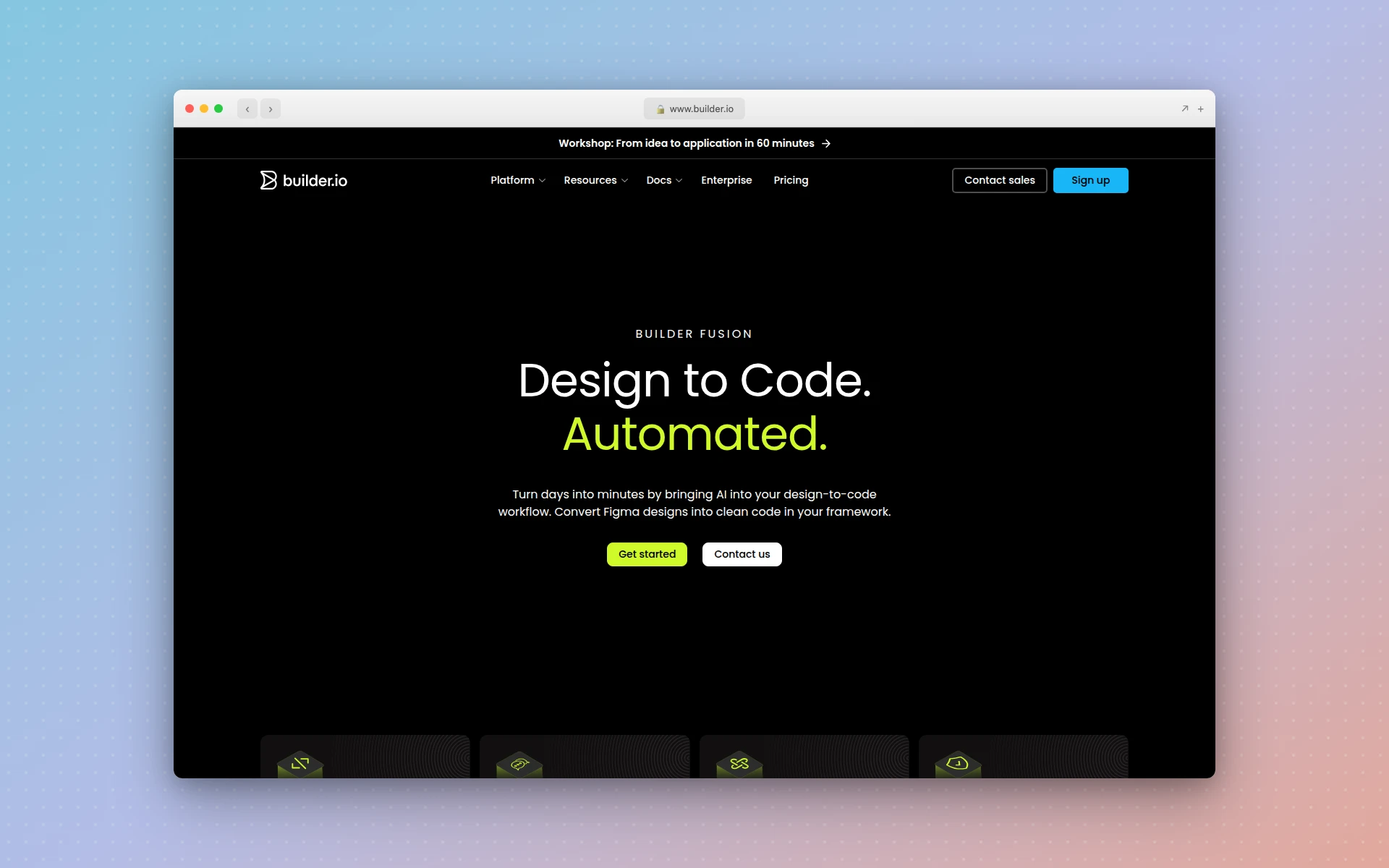 Builder.io Visual Copilot uses AI to convert Figma designs to code in your preferred framework.
Builder.io’s Visual Copilot is the most technically sophisticated Figma to code plugin on this list. It uses an AI model combined with an open-source compiler called Mitosis to transform flat Figma designs into proper code hierarchies, then refines the output with an LLM for your preferred framework and styling conventions.
The standout feature is component mapping. You can link your Figma design components to their corresponding code components in your codebase. When Visual Copilot encounters a mapped component during conversion, it uses your actual component code instead of generating new markup from scratch. This is a massive time saver for teams with established design systems.
The framework support is the widest in the category: React, Vue, Svelte, Angular, Qwik, Solid, React Native, and plain HTML. Styling options include plain CSS, Tailwind, Emotion, and Styled Components.
Key features:
- AI-powered conversion with Mitosis compiler
- Component mapping to your existing codebase
- Support for 8+ frameworks and 4+ styling options
- In-context chat for iterating on generated code
- Automatic responsive design adjustments
- SOC 2 Type II compliance for enterprise security
Pricing: Free tier available with limited conversions. Enterprise pricing available on request (contact sales). Builder.io’s broader platform starts free, with paid plans for advanced features.
What I like: The component mapping feature is genuinely useful. Instead of generating generic divs and spans, Visual Copilot outputs code that references your actual Button, Card, and Layout components. This dramatically reduces the cleanup work. The multi-framework support via Mitosis is technically impressive.
What could be better: Enterprise pricing is not transparent --- you need to contact sales. The learning curve is steeper than simpler plugins because you get the most value only after setting up component mappings. Smaller teams may find the setup overhead does not justify the benefits.
3. Locofy
Best for: Large-scale design-to-code automation for teams with complex Figma files
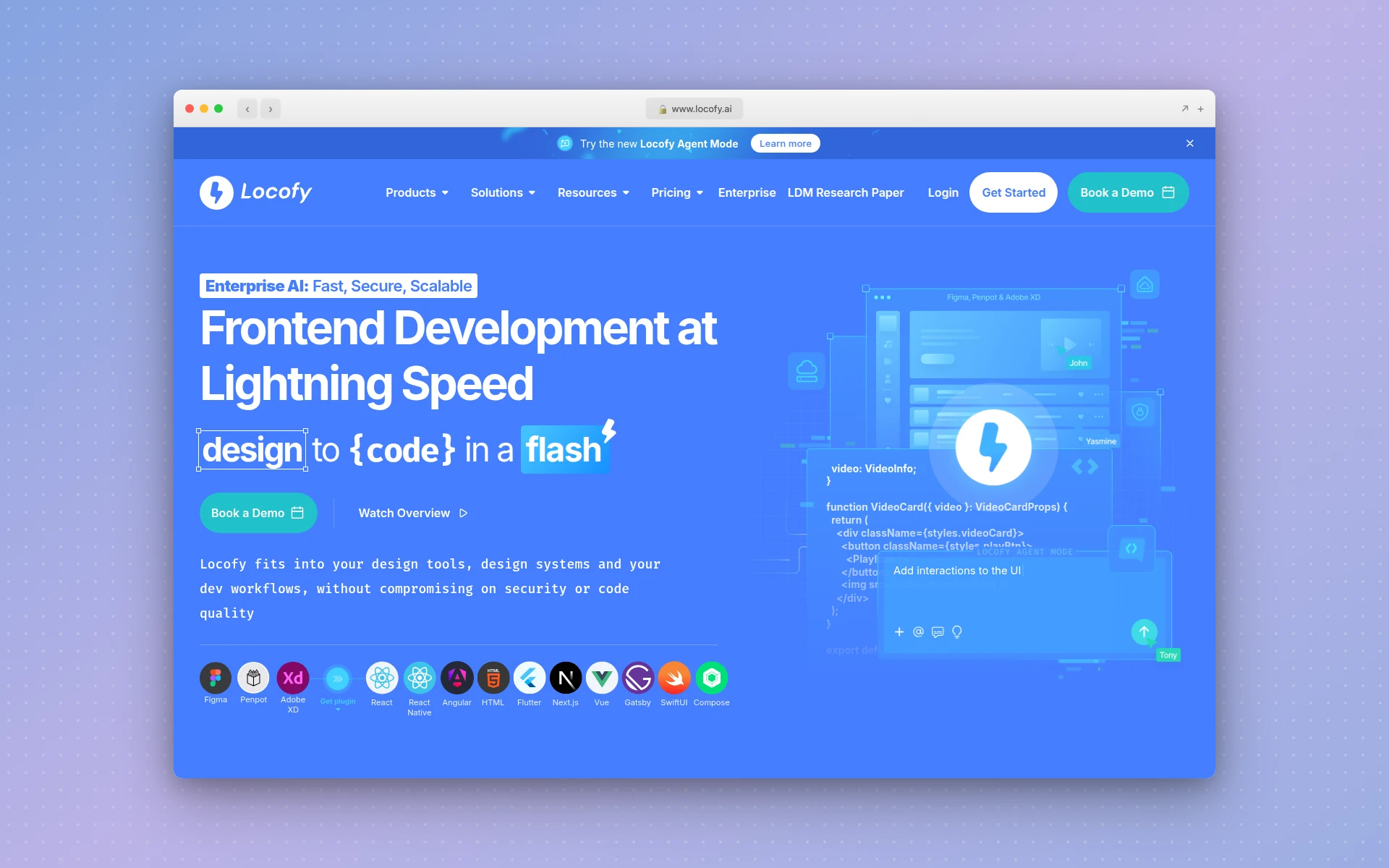 Locofy Lightning converts Figma designs to code for React, Next.js, and more.
Locofy (specifically Locofy Lightning) takes a systematic approach to Figma to code conversion. Rather than doing a one-click export and hoping for the best, Locofy walks you through a tagging and optimization process within Figma before generating code.
You tag elements in your design --- marking which layers are buttons, inputs, containers, and navigation elements. Locofy then uses this information to generate more semantically accurate code. The output typically targets React and Next.js, with support for various CSS approaches.
This guided approach produces better code than most one-click alternatives, but it adds time upfront. For a complex multi-screen application, the tagging process can take 30-60 minutes. The trade-off is that the generated code needs less manual cleanup afterward.
Key features:
- Guided tagging system for semantic accuracy
- React and Next.js code generation
- Responsive design handling with breakpoint configuration
- Component detection and reuse
- GitHub integration for direct code push
- Support for Figma and Adobe XD source files
Pricing: Free tier with limited exports. Paid plans available on request (varies by team size and usage).
What I like: The tagging approach produces genuinely better code than one-click alternatives. The GitHub integration means you can push generated code directly into your repository. Locofy handles complex layouts (nested auto-layouts, constraints-based designs) better than most competitors.
What could be better: The tagging process adds friction that smaller teams might not want. Pricing is opaque. The focus on React/Next.js means Vue, Svelte, and Angular teams need to look elsewhere.
4. Figma Dev Mode
Best for: Developer handoff, code inspection, and design specs within Figma
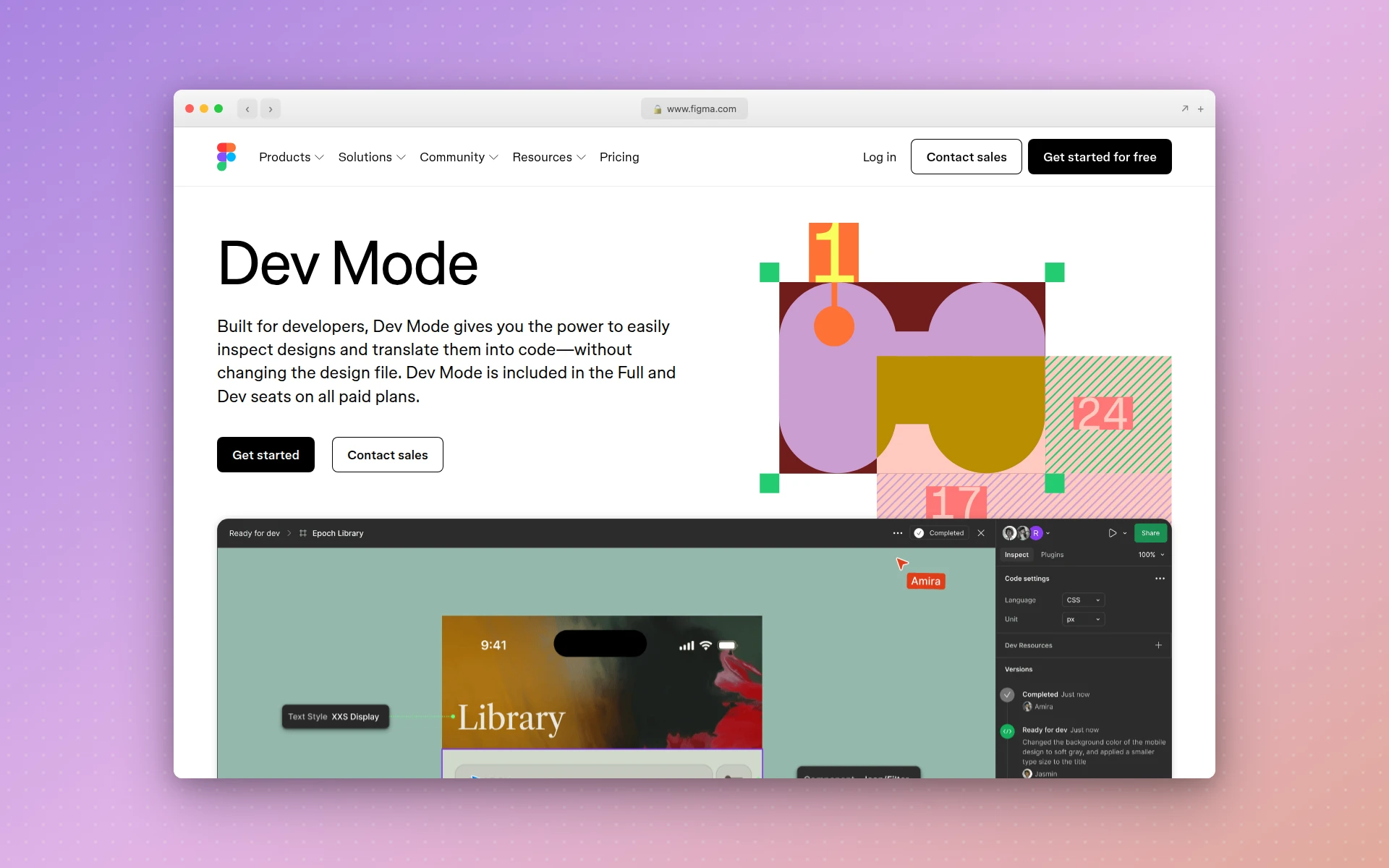 Figma Dev Mode provides developer-focused inspection and code snippet generation.
Figma Dev Mode is not a code generation tool in the same way as Anima or Builder.io. It is Figma’s built-in developer handoff interface that lets developers inspect designs, grab CSS properties, export assets, and view component specifications --- all without leaving Figma.
The key distinction: Dev Mode generates code snippets (CSS properties, iOS Swift values, Android Kotlin values), not complete component code. You get spacing values, color tokens, typography specs, and layout dimensions. It is closer to a specification viewer than a code generator.
That said, Dev Mode has become significantly more useful with recent updates. Version comparison lets developers see exactly what changed between design iterations. Status markers help designers flag which screens are ready for development. And the Code Connect feature lets teams link Figma components to their actual codebase, so developers see real component code instead of auto-generated snippets.
Key features:
- Multi-language code inspection (CSS, iOS, Android)
- Version comparison for tracking design changes
- Status markers and “ready for dev” annotations
- Code Connect for linking to real component code
- Integration with GitHub, Jira, Storybook, and VS Code
- Automated asset detection and export
Pricing: Included in all paid Figma plans. Requires a Full or Dev seat license. Not available on the free Figma Starter plan.
What I like: It is native to Figma, so there is no plugin installation or context switching. The Jira and GitHub integrations are genuinely useful for tracking design-to-development progress. Code Connect is a smart way to bridge the gap between design components and code components.
What could be better: Dev Mode does not generate complete, runnable code. You still need a separate tool (or manual coding) to turn the specs into actual React/Vue/HTML components. For teams that need end-to-end code generation, Dev Mode is a complement, not a replacement.
5. TeleportHQ
Best for: Low-code website building with Figma import and visual editing
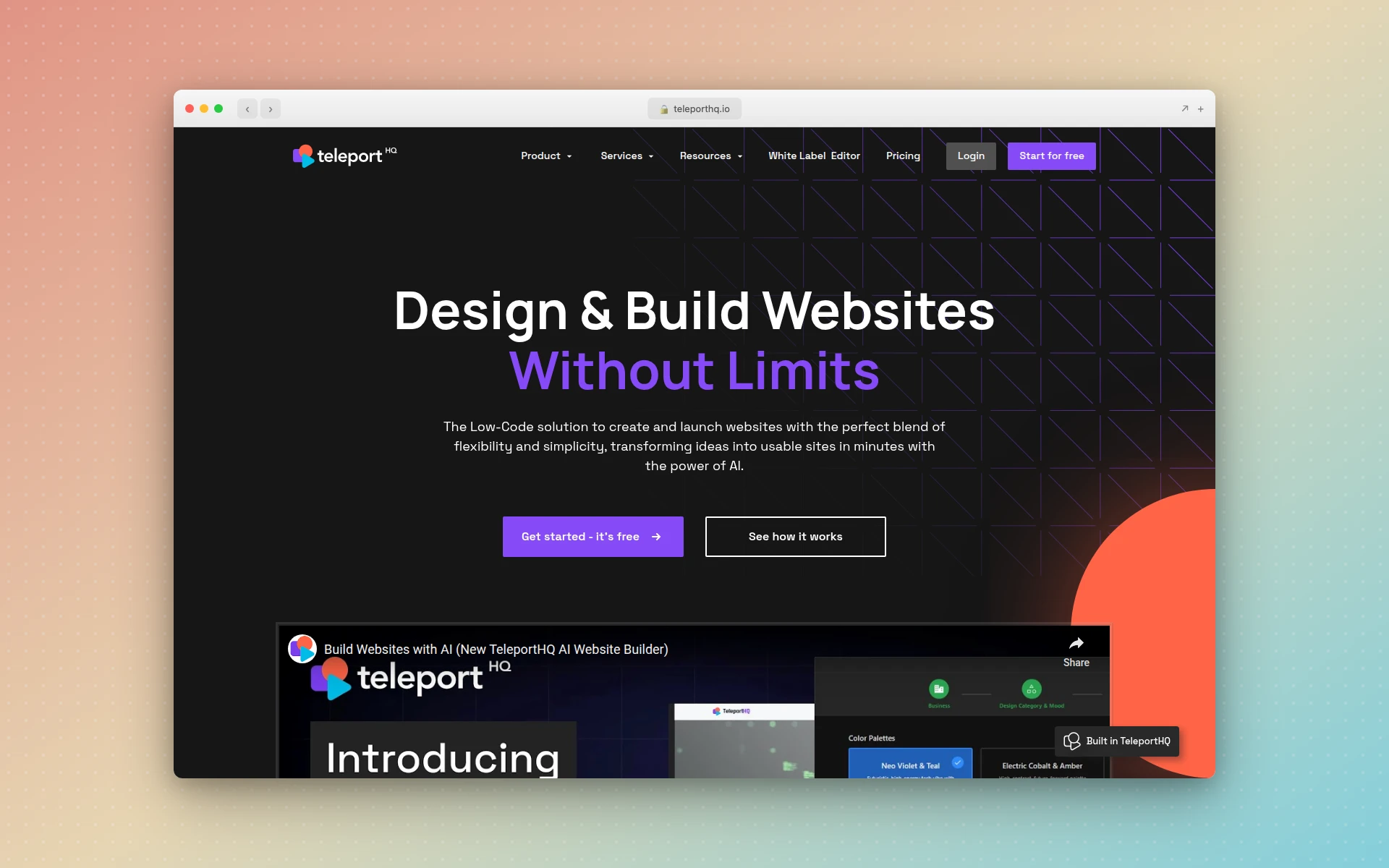 TeleportHQ combines Figma import with a low-code visual builder for website creation.
TeleportHQ sits between a Figma-to-code tool and a full website builder. You can import Figma designs and then continue editing them in TeleportHQ’s visual builder, adding interactions, dynamic data, and responsive adjustments before exporting clean code or publishing directly.
The platform supports HTML, React, Vue, and Angular output. The code is based on an open-source UIDL (User Interface Definition Language) standard, which means the same design can target multiple frameworks without re-conversion.
TeleportHQ is particularly useful if you want to go from Figma design to published website without writing code manually. The built-in hosting and CMS features mean you can treat it as a deployment platform, not just a code exporter.
Key features:
- Figma plugin for design import
- Visual drag-and-drop editor for post-import refinement
- Multi-framework code export (HTML, React, Vue, Angular)
- Built-in hosting and CMS
- Open-source UIDL standard for framework-agnostic output
- Collaboration and team features
Pricing: Free plan available with limited projects. Paid plans start at approximately $15/month for professional use.
What I like: The combination of Figma import and visual editing is powerful. You can fix conversion issues visually rather than in code. The multi-framework output via UIDL is technically interesting and produces consistent results across targets.
What could be better: The visual editor, while capable, adds another tool to your workflow. Code output for complex interactive components sometimes needs manual refinement. The platform is less well-known than competitors, which means a smaller community and fewer tutorials.
6. Zeplin
Best for: Structured design delivery, handoff documentation, and code inspection
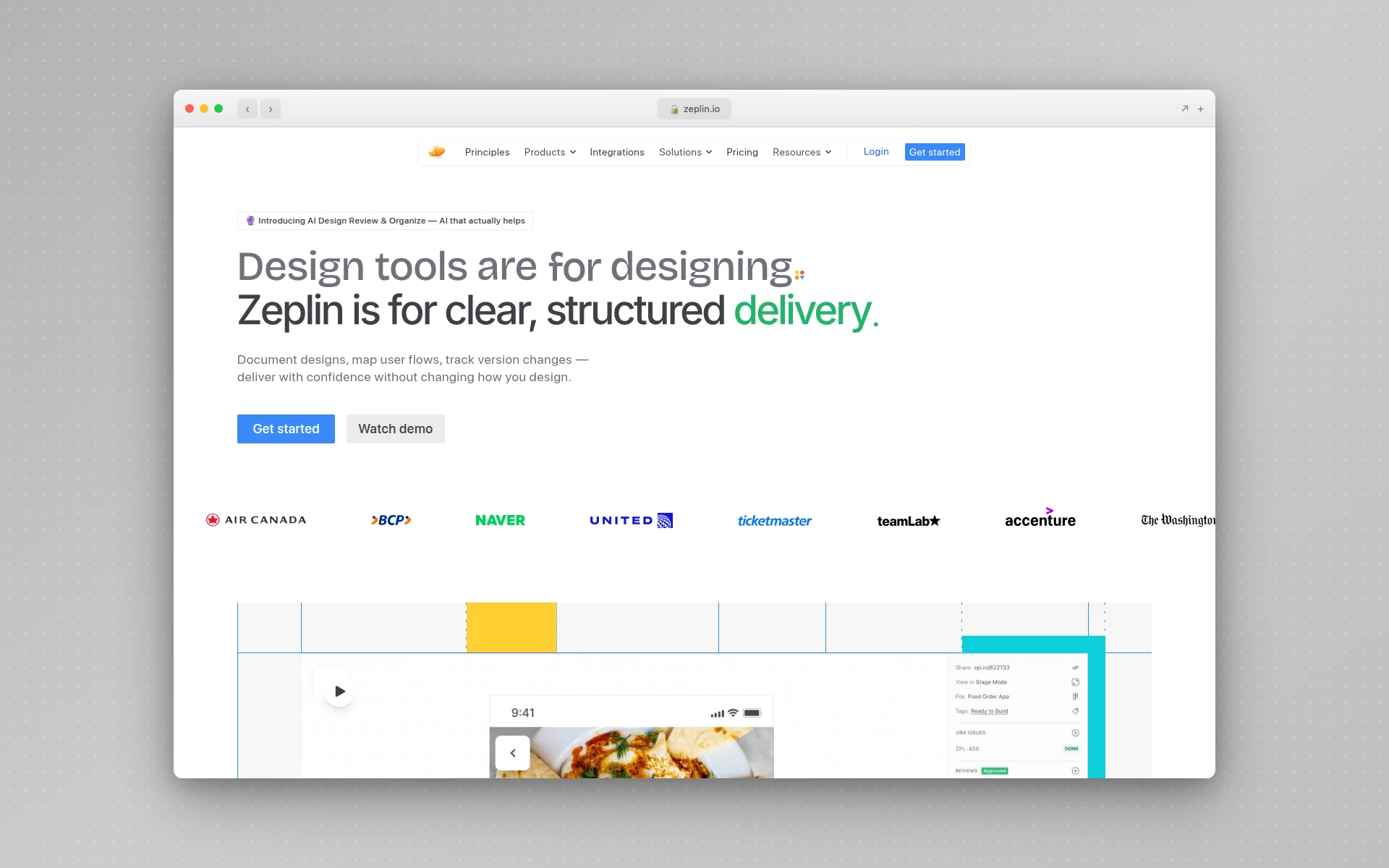 Zeplin provides structured design delivery with code snippets tailored to your dev stack.
Zeplin approaches the design-to-code problem differently from most tools on this list. Rather than trying to generate complete component code, Zeplin focuses on design delivery --- giving developers a structured, version-controlled space to inspect designs, grab measurements, and access code snippets tailored to their technology stack.
The platform integrates with Figma, Sketch, and Adobe XD. You publish frames from your design tool into Zeplin, where developers can inspect them with accurate measurements, assets, and code snippets in CSS, Swift, Kotlin, or XML.
Recent additions include an AI Design Review feature that catches off-system colors, spacing inconsistencies, typos, and accessibility issues before handoff. Zeplin also offers an MCP server integration that generates more complete, usable code by analyzing both designs and documentation.
Key features:
- Version control with Git-inspired change tracking
- AI Design Review for catching inconsistencies
- Code snippets in CSS, Swift, Kotlin, and XML
- User flow mapping with connectors and annotations
- Integration with Figma, Sketch, and Adobe XD
- MCP server for enhanced code generation
Pricing: Free plan for 1 project. Paid plans start at approximately $8/month per seat.
What I like: Zeplin excels at the handoff process. The version tracking and annotation features save significant back-and-forth between designers and developers. The AI Design Review catches issues that would otherwise become bugs in production.
What could be better: Zeplin is a handoff and inspection tool, not a code generator. You get specs and snippets, not complete components. For teams that want automated code generation, Zeplin needs to be paired with another tool on this list.
7. DhiWise (Rocket)
Best for: Full-stack app generation from Figma designs with backend logic
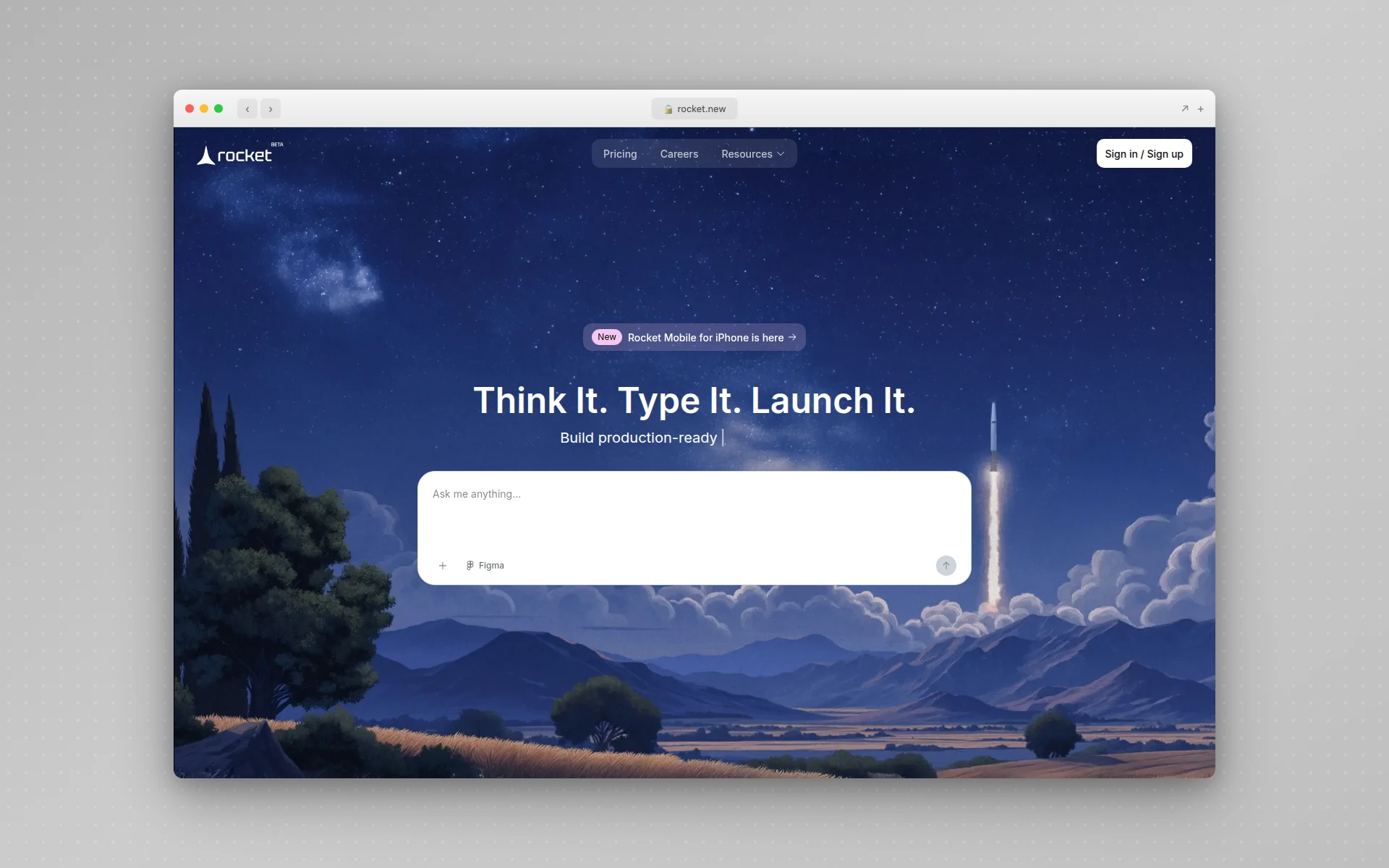 DhiWise (now Rocket) generates full-stack applications from Figma designs and text prompts.
DhiWise, which recently rebranded as Rocket, goes further than most Figma to code tools by generating not just frontend code but complete applications with backend infrastructure. You can import Figma designs and get React, Flutter, or Next.js output with database schemas, authentication, and API endpoints included.
The platform also supports text-prompt-based generation, making it usable even without Figma designs. The template system claims to reduce token consumption by up to 80%, which keeps generation costs low.
With over 653,000 users across 180+ countries, DhiWise/Rocket has built a substantial user base. The platform supports deployment to Netlify, custom domains, and mobile app installation.
Key features:
- Figma to React, Flutter, and Next.js conversion
- Full-stack generation with database and API endpoints
- Text prompt-based app generation
- Template system for reduced generation costs
- Deployment to Netlify and custom domains
- Support for multiple backend stacks
Pricing: Free tier available. Paid plans vary by usage. First month promotional pricing often available.
What I like: DhiWise is one of the few tools that handles both frontend and backend generation from Figma designs. For teams building MVPs or prototypes, this eliminates the need for separate backend setup. The Flutter support is rare in this category.
What could be better: The rebrand to Rocket has caused some confusion. The generated backend code often needs significant customization for production use. The Figma import quality is not as refined as Anima or Builder.io for frontend code specifically.
8. AIDesigner (The Alternative Approach)
Best for: Skipping the Figma-to-code workflow entirely with prompt-to-production generation
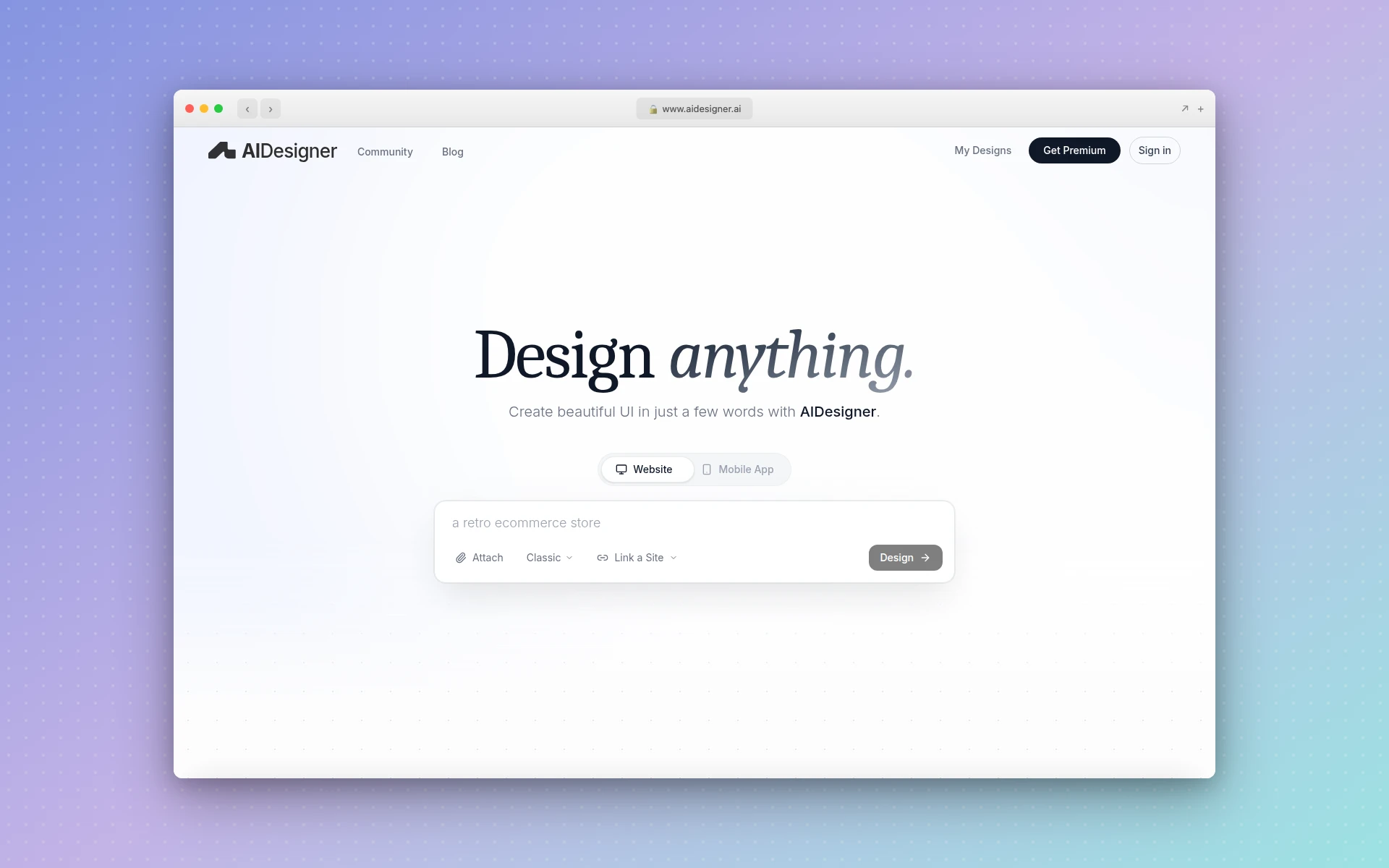 AIDesigner generates production-ready UI and code directly from text prompts, bypassing the Figma-to-code step.
I am including AIDesigner, an AI designer, on this list not because it is a Figma-to-code tool, but because it represents where the design-to-code workflow is heading: you skip the conversion step entirely.
Instead of designing in Figma and then converting to code, AIDesigner generates production-ready interfaces directly from text prompts. Describe what you want --- “a SaaS pricing page with three tiers, dark mode, gradient accents” --- and you get polished HTML/CSS/Tailwind code in seconds. The output is immediately publishable via one-click hosting with custom domains.
For teams currently spending hours on the Figma-to-code pipeline, this prompt-to-production approach can be a genuine workflow shift. You still get the visual design, but the code comes with it from the start rather than being generated as an afterthought.
AIDesigner also has a free website cloner that recreates any existing website from a URL as a starting point (here’s how cloning works), and an Enhance mode that improves existing designs. If you have a Figma design you love, you can screenshot it, feed it to AIDesigner, and get working code that matches the visual without going through a plugin-based conversion.
Key features:
- Text prompt to production-ready UI generation
- HTML/CSS/Tailwind and React code output
- One-click publishing with custom domains and SEO
- Clone mode for recreating existing websites
- Infinite canvas workspace for complex projects
- In-canvas editing with context-aware AI
- Mobile app UI design generation
Pricing: Free tier with 5 lifetime credits. Pro starts at $25/month for 100 credits (1 credit = 1 generation). Yearly billing saves approximately 17%. See the full pricing breakdown for details.
What I like: The workflow is fundamentally faster. There is no design-then-convert pipeline --- you get design and code simultaneously. The output quality is consistently high, and the one-click publishing means you can go from idea to live site in minutes. The Clone feature is particularly useful for teams migrating from existing designs.
What could be better: This approach requires a mindset shift from traditional Figma workflows. Teams with heavy investment in Figma design systems may still prefer plugin-based conversion for consistency. The tool generates new code rather than integrating with your existing component library (unlike Builder.io’s component mapping).
How to Choose the Right Figma to Code Tool
The “best” tool depends entirely on your team’s workflow, tech stack, and how much manual cleanup you are willing to do. Here is a decision framework:
Choose Based on Your Output Needs
| If You Need… | Use This |
|---|---|
| Multi-framework support (React, Vue, Angular, Svelte) | Builder.io Visual Copilot |
| Best all-around plugin for React/Vue/HTML | Anima |
| Full-stack code with backend | DhiWise (Rocket) |
| Design specs and handoff (not full code) | Figma Dev Mode or Zeplin |
| Published website from Figma design | TeleportHQ |
| Skip Figma entirely, generate from prompts | AIDesigner |
Choose Based on Team Size
Solo developers and freelancers: Anima’s free tier produces clean code you can build on directly. If you prefer prompts over Figma, try AIDesigner instead.
Small teams (2-10): Anima or TeleportHQ. Anima for code export, TeleportHQ if you want visual editing after import. Pair either with Figma Dev Mode for handoff context.
Enterprise teams (10+): Builder.io Visual Copilot. The component mapping feature alone justifies the cost at scale. Pair with Zeplin for structured handoff documentation.
How Much Does Figma to Code Conversion Cost?
Figma to code tools range from free to several hundred dollars per month depending on team size and conversion volume. Most tools offer functional free tiers with limits on the number of exports or projects. Paid plans typically start at $8-25 per month per seat, with enterprise pricing available for larger teams.
Here is a pricing breakdown of the most popular options:
| Tool | Free Tier | Starting Paid Price | Enterprise |
|---|---|---|---|
| Anima | Limited exports | $24/mo | $150/mo |
| Builder.io Visual Copilot | Limited conversions | Contact sales | Contact sales |
| Locofy | Limited exports | Contact sales | Contact sales |
| Figma Dev Mode | Not on free plan | Included in paid Figma ($15+/mo) | Included in Figma Org/Enterprise |
| TeleportHQ | Limited projects | ~$15/mo | Custom |
| Zeplin | 1 project | ~$8/mo per seat | Custom |
| DhiWise (Rocket) | Limited usage | Varies | Custom |
| AIDesigner | 5 lifetime credits | $25/mo (100 credits) | Scales to $2,250/mo |
Budget recommendation: For most teams, Anima at $24/month provides the best balance of features, code quality, and framework support. If you are on a tight budget, start with Figma Dev Mode (included in your Figma plan) plus Anima’s free tier.
Can AI Replace the Figma to Code Workflow?
Yes, increasingly so. The Figma-to-code pipeline exists because of a fundamental assumption: design and code are separate artifacts that need to be synchronized. But AI UI design tools are challenging that assumption.
Tools like AIDesigner, v0 by Vercel, and the new wave of AI coding tools generate both the visual design and the underlying code simultaneously. There is no conversion step because the code is the design. Our AIDesigner vs Figma comparison digs into how this prompt-to-code approach stacks up against the traditional Figma handoff.
This does not mean Figma-to-code tools are obsolete. Teams with established Figma workflows, extensive design systems, and existing Figma files still benefit from conversion tools. But for new projects --- especially landing pages, marketing sites, and MVPs --- the prompt-to-production approach is often faster.
The shift is happening in stages:
- Current state: Most teams design in Figma, then convert to code
- Near-term: Teams use AI to generate initial designs and code, then refine in Figma
- Long-term: AI generates production-ready code directly; Figma becomes optional for many use cases
If you are evaluating tools today, consider whether you need to optimize your existing Figma-to-code pipeline or whether it is time to explore alternatives that bypass it entirely.
Common Figma to Code Mistakes to Avoid
After testing these tools extensively, here are the most frequent issues I see teams run into:
1. Messy Figma Files Produce Messy Code
Every Figma to code tool depends on your design file being well-structured. If your layers are unnamed (“Frame 427”), your groups are inconsistent, and your auto-layouts are mixed with absolute positioning, no tool will produce clean code.
Fix: Use auto-layout consistently. Name your layers semantically (e.g., “hero-section,” “pricing-card”). Use Figma components for repeated elements.
2. Expecting Pixel-Perfect Output
No Figma to code tool produces 100% pixel-perfect, production-ready code on the first export. Every tool requires some manual refinement, particularly for responsive behavior, interaction states, and dynamic data.
Realistic expectation: Plan for 20-40% manual refinement time after code generation, depending on design complexity and the tool you use.
3. Ignoring Component Mapping
If your team has an existing design system — React components, design tokens, Figma library — use a tool that supports component mapping like Builder.io Visual Copilot. Otherwise, you end up with generated code that duplicates your existing components, creating maintenance headaches.
4. Converting Everything at Once
Start with individual components and simple pages before converting complex multi-screen flows. This lets you evaluate code quality at a manageable scale and build confidence in the tool before committing to a full conversion workflow.
Figma to HTML: The Most Common Use Case
Figma to HTML conversion remains the most searched and most common use case in this category. Unlike framework-specific exports (React, Vue, Angular), HTML/CSS output works everywhere and requires no build system or framework knowledge.
For pure Figma to HTML conversion, Anima and TeleportHQ produce the cleanest output. Both generate semantic HTML5 with modern CSS (flexbox, grid, custom properties). Anima tends to produce slightly more compact CSS, while TeleportHQ’s output is more verbose but easier to read.
If you want Figma to HTML with zero plugins, Figma Dev Mode provides CSS snippets that you can manually assemble into HTML templates. This works for simple layouts but becomes impractical for complex pages.
For teams that want HTML output without starting in Figma at all, AIDesigner generates complete HTML/CSS/Tailwind pages from text descriptions. The output is immediately hostable --- no Figma step, no conversion step, no build step. If your implementation happens through a coding agent rather than an export plugin, the same idea applies: generate the design reference first, then hand it to the agent, which is the workflow covered in vibe coding with Claude.
Figma to React: What Developers Need to Know
Figma to React is the second most common use case, and the one where code quality matters most. React components need proper JSX structure, state management hooks, typed props, and clean component composition. A bad Figma to React export creates more work than it saves.
Best for React output: Anima and Builder.io Visual Copilot. Anima produces clean functional components with proper prop types. Visual Copilot goes further by mapping to your existing React components, which means the output integrates with your codebase rather than creating parallel component structures.
Locofy also produces solid React and Next.js output, especially for page-level components. The tagging system helps the tool understand which elements are interactive components versus static layout.
Common React-specific issues:
- Generated components often lack proper state management (tools produce static JSX)
- Event handlers are usually placeholder functions that need implementation
- Responsive behavior via CSS media queries rather than React-specific patterns
- TypeScript type definitions are often incomplete or missing
Pro tip: If you are building a React application and want to skip the Figma-to-React pipeline, v0 by Vercel generates React/Tailwind components directly from prompts. AIDesigner also outputs React components alongside its HTML/CSS generation.
FAQ
Can Figma generate code directly?
Figma Dev Mode provides CSS, iOS, and Android code snippets for inspection, but it does not generate production-ready frontend code. For full code generation from Figma designs, you need a third-party plugin like Anima, Locofy, or Builder.io Visual Copilot that exports React, Vue, or HTML.
What is the best free Figma to code tool?
Anima offers the most capable free tier for Figma to code conversion, with limited exports in React, HTML, and Vue. Figma Dev Mode is included free in Figma Starter plans for basic code inspection. For full production-ready code, most tools require a paid plan starting at $12-25 per month.
Is Figma to code output production-ready?
It depends on the tool. Builder.io Visual Copilot and Anima produce code that approaches production quality, especially when mapped to existing component libraries. Most tools generate clean starter code that needs 20-40% manual refinement for production use, particularly for responsive behavior and dynamic data.
What frameworks do Figma to code tools support?
Most Figma to code tools support React, HTML/CSS, and Vue as primary outputs. Builder.io Visual Copilot supports the widest range including React, Vue, Svelte, Angular, Qwik, and Solid. Anima covers React, Vue, and HTML. Locofy focuses on React and Next.js.
Do I still need Figma to code tools in 2026?
For teams with existing Figma design workflows, yes. But AI design tools like AIDesigner now generate production-ready HTML, React, and Tailwind code directly from text prompts, bypassing the Figma-to-code step entirely. Many teams are shifting from design-then-convert to prompt-to-production workflows.
How accurate is Figma to code conversion?
Accuracy varies by tool and design complexity. Simple layouts convert at 85-95% visual accuracy. Complex designs with custom interactions, animations, and responsive breakpoints typically need manual adjustment. Component mapping features in tools like Builder.io and Anima improve accuracy by linking designs to your existing codebase.