AIDesigner vs Canva comes up constantly, and it is almost always the wrong framing. The two tools look like competitors because both say “design,” but they aim at different jobs. Canva is where you make a social post, a slide deck, or a flyer. AIDesigner is where you make a real product, website, or app interface that ships as code.
This is an honest comparison, not a takedown. For the workflow this article is about (designing real UI, websites, and app screens you intend to build and launch), AIDesigner is the tool I reach for, and I will say so plainly. But Canva is genuinely excellent at what it does, and there is a whole section below on exactly where it wins. Pretending otherwise would just waste your time.
The one-line version: choose Canva for social, print, and presentation graphics from a massive template library; choose AIDesigner when you need real website or app UI with clean, shippable code. Most people land on this comparison because they tried to design a product interface in Canva and hit a wall. If that is you, the rest of this explains why and what to use instead.
For the wider field beyond this head-to-head, the roundup of Canva alternatives covers twelve options, and the guide to the best AI UI design tools ranks the AI-first contenders for product work.
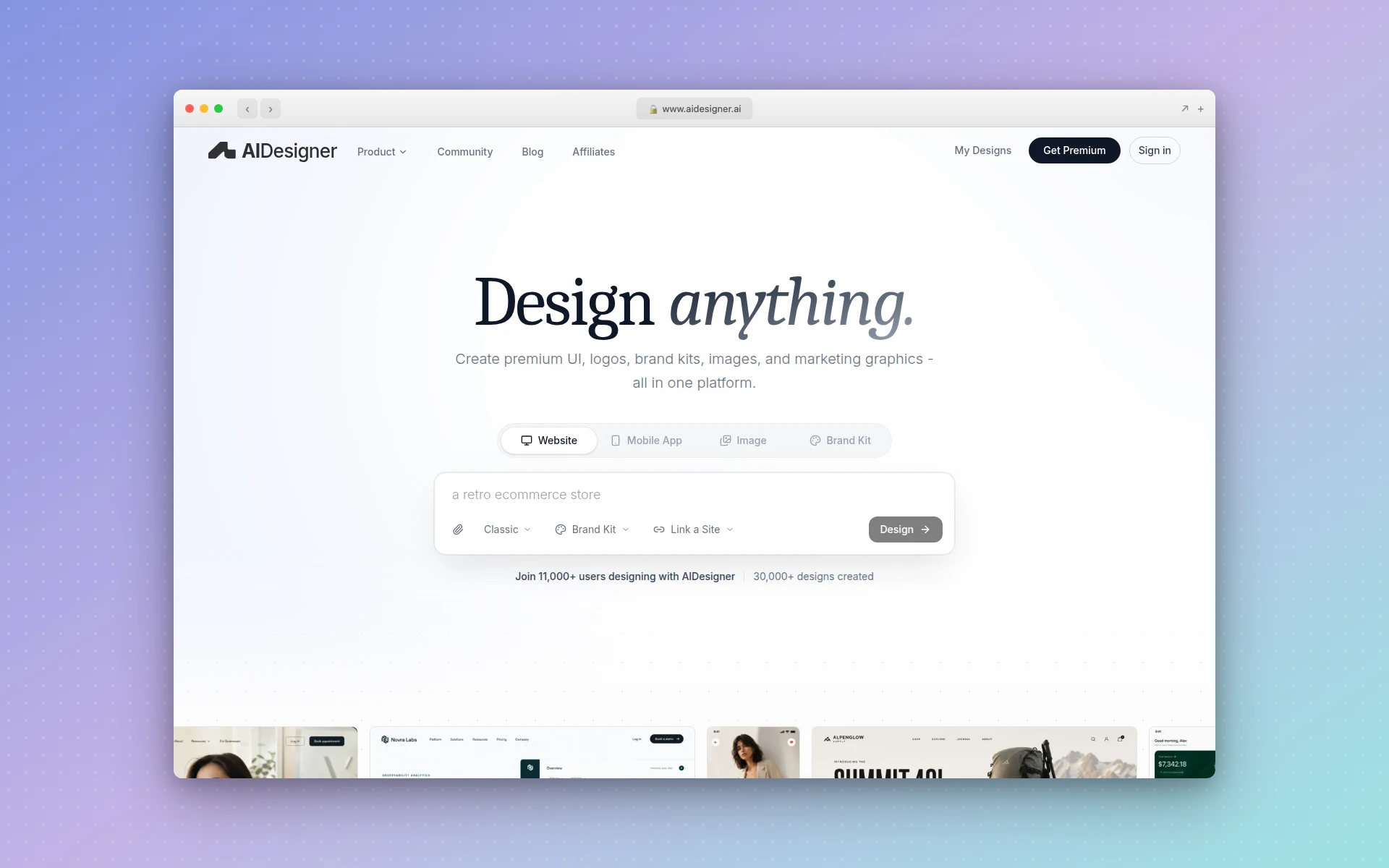 AIDesigner generates production-ready websites, app screens, and UI from a text prompt, with clean HTML and CSS export. Captured from aidesigner.ai.
AIDesigner vs Canva: Which Is Better?
AIDesigner is better for real product and web UI: it generates complete websites, app screens, and interfaces from a text prompt, exports clean HTML and CSS, and publishes live. Canva is better for social media, presentations, and print, with an enormous template and stock library and the easiest drag-and-drop in the category. If you need shippable interface code, AIDesigner wins; if you need fast on-brand marketing graphics, Canva wins.
| Feature | AIDesigner | Canva |
|---|---|---|
| Best For | Real website, app, and product UI | Social, print, presentations, marketing graphics |
| Core Workflow | Prompt to production UI in seconds | Drag-and-drop from templates |
| Code Export | Clean HTML and CSS built in | Image / iframe / self-contained site file (not clean code) |
| Template Library | AI-generated, prompt-native | Hundreds of thousands of templates, 100+ design types |
| Stock Assets | AI image generation (GPT Image 2–class quality) | Millions of stock photos, videos, elements |
| Live Publishing | One-click to a custom subdomain | Publish simple sites on a Canva domain |
| AI Generation | Native: UI, sites, mobile, images, brand kits | Magic Studio AI assists inside the canvas |
| Agent / MCP Support | Native MCP server for Claude Code, Cursor, more | None |
| Ease for Non-Designers | Plain-language prompts, no design skills | Best-in-class drag-and-drop |
| Free Tier | Yes, no card required | Yes (free plan) |
| Paid Entry Price | $25/mo | $15/mo (Pro) |
Every row gets unpacked below, including a full “where Canva genuinely wins” section, so you can match the tool to what you are actually building.
What Is AIDesigner?
AIDesigner is an AI-first design platform built for interfaces. Instead of dragging template elements around a canvas, you describe what you want in plain language and AIDesigner generates a polished, production-ready UI in seconds. It handles full websites, mobile app screens, landing pages, and individual components, and it exports clean HTML and CSS, so the output is something you can build on, not a flattened picture.
It goes well past one-shot generation. AIDesigner saves reusable brand kits (palette, typography mood, imagery, and art direction) so every future design stays visually consistent. Spin one up on the brand kit generator from a 3x3 variation board, or have AIDesigner extract a kit straight from an existing site’s URL. It also generates standalone images at GPT Image 2–class quality with UI-tuned prompt presets, pulls embedded assets out of a generated design into reusable canvases, and exposes the whole pipeline to coding agents through an MCP server.
The shorthand: Canva is where you assemble a graphic from templates, and AIDesigner is where you describe an interface and get code you can ship.
What Is Canva?
Canva is the drag-and-drop design platform that made graphic design accessible to everyone. It is a browser-based editor with an enormous template library spanning more than 100 design types: Instagram posts, presentations, flyers, resumes, T-shirts, video, documents, and far more. You pick a template, swap in your text and images, and export. Its defining strength is approachability: you do not need any design training to produce something clean.
Canva also leans hard into AI through its Magic Studio suite (background removal, magic edits, text-to-image, and writing help) layered into the canvas, plus a deep library of millions of stock photos, videos, and elements. For teams, Canva offers mature brand governance: brand controls, approval workflows, and SSO on its higher tiers.
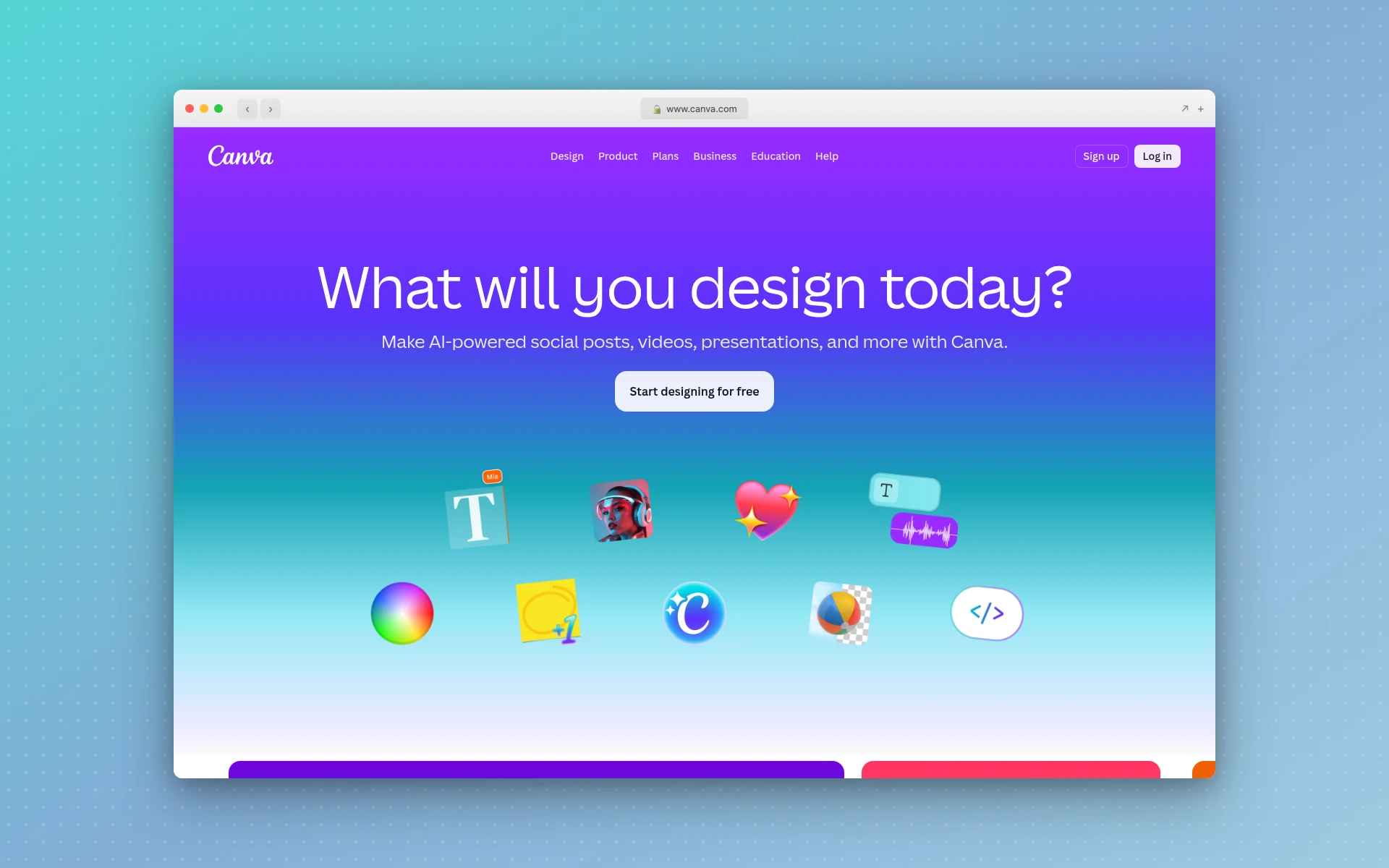 Canva’s template-driven editor is the easiest way to make social, print, and presentation graphics. Captured from canva.com.
AIDesigner vs Canva: Designing Real UI
The clearest split is what happens when you try to design an actual product interface. In AIDesigner, you write a prompt and a complete, responsive UI appears with real HTML and CSS behind it. In Canva, you are arranging template blocks on a fixed canvas, and the result is a graphic, not a working interface.
I tested this directly. I gave both tools the same brief: a SaaS landing page with a hero, feature grid, pricing table, and footer. In AIDesigner I had a full responsive draft with structured code in under a minute. In Canva I could assemble something that looked like a landing page from a template, but it exported as an image or an embed, not as code I could hand to a developer or extend. That gap is the whole reason this comparison exists, and it is why the best AI landing page builders roundup separates real builders from graphic tools.
The tradeoff runs the other way too. For a one-off Instagram carousel or a pitch deck, Canva’s template-first approach is faster and friendlier than writing a prompt. Canva is optimized for visual collateral; AIDesigner is optimized for interfaces you build on.
AIDesigner vs Canva: Code and Publishing
This is where the two tools stop overlapping entirely. Canva’s “export to web” options are an embed (a live iframe of your design) or a saved self-contained single-page file. Per Canva’s own help documentation on embedding designs, edits update the embedded version automatically, which is great for portfolios and presentations, but the underlying output is not clean, editable HTML and CSS. It is a wrapped image or an iframe.
AIDesigner produces clean HTML and CSS as part of generation, and can publish the result to a live custom subdomain with one click. If your end goal is a coded page a developer can take over, that difference is decisive. The Figma to code tools breakdown exists because that translation step is a known bottleneck across the industry; AIDesigner removes it by generating the code in the first place.
To be clear on what does not exist: AIDesigner does not import Canva files, and it does not export to Canva. These are separate tools with separate output models, not two ends of a conversion pipeline.
Why AIDesigner Is the UI Tool I Reach For
For real interface work, AIDesigner is the tool I open first. Here is what it does that a template-based graphic editor does not.
Prompt-to-production UI. Describe a landing page, dashboard, or mobile app screen and AIDesigner returns a polished, responsive design with real HTML and CSS in seconds. No template hunting, no manual block-by-block assembly, and the output is code, not a picture.
Saved brand kits, two ways. Build a kit from a 3x3 brand variation board, or auto-extract one from any existing website URL: palette, typography, imagery, and art direction. Save it once and every future generation (designs, images, website concepts) stays on-brand automatically. This is the consistency layer most quick-design tools only approximate, and it ties directly into the ideas in the guide to what a design system is.
Native image generation and asset extraction. AIDesigner generates images at GPT Image 2–grade quality with prompt presets fine-tuned for design (quality tiers, multiple aspect ratios, reference-based editing) and can extract embedded photos, logos, illustrations, or textures out of a generated design into separate, reusable canvases. One generation becomes a small library of brand-consistent components.
An MCP server for coding agents. This is the part Canva has no answer to. AIDesigner ships an MCP server so coding agents like Claude Code, Cursor, Windsurf, and VS Code can generate and refine designs, create brand kits, and drop assets straight into your build. If you work inside an agent, the guide on designing UIs with Claude Code shows how it fits together.
Mobile and desktop in one place. Generate at a 1440px desktop viewport or a 430px mobile viewport without switching tools, which is why AIDesigner sits at the top of the best AI mobile app design tools roundup. You can try the core flow on the free AI UI designer.
Add it up and the pattern is clear: AIDesigner is built to produce real, on-brand, shippable interfaces, while Canva is built to make polished graphics from templates. Different jobs, different tools.
Where Canva Genuinely Wins
I am not going to pretend Canva is the lesser tool, because for most of what it does, it is excellent and AIDesigner is not trying to compete. There are three areas where Canva is clearly the better choice, and if your work lives there, use Canva.
The template and stock library. Canva’s library is enormous, spanning hundreds of thousands of templates across 100+ design types, backed by millions of stock photos, videos, and elements. Need an Instagram story, a webinar slide deck, a restaurant menu, and a business card by this afternoon? Canva has a starting point for every one of them. No AI UI tool, AIDesigner included, matches that breadth of ready-made marketing and print collateral.
Drag-and-drop ease and format breadth. For a non-designer who needs a clean graphic fast, Canva’s editor is the friendliest in the category, full stop. It also spans social, print, presentations, and video in one place. If your day is making a poster, then a Reels cover, then a one-pager, Canva’s all-in-one drag-and-drop is genuinely hard to beat.
Mature team brand governance. For organizations standardizing their visual identity, Canva offers brand controls, approval workflows, and SSO on its Teams and Enterprise tiers. Marketing teams can lock down fonts, colors, and logos so non-designers stay on-brand at scale. That governance layer is deep and battle-tested.
None of this is faint praise. If your output is marketing graphics, social content, decks, and print, Canva is almost certainly your center of gravity, and AIDesigner is a complement for the product UI work Canva was never meant to do.
AIDesigner vs Canva: Pricing Compared
Pricing reflects the different jobs. AIDesigner is priced for UI and code output; Canva is priced for high-volume graphic design across many formats and seats.
| Plan | AIDesigner | Canva |
|---|---|---|
| Free | Free tier, no card required | Free plan |
| Entry paid | $25/mo (100 generations) | Pro: $15/mo (~$120/yr) |
| Team tier | Scales by generation volume | Teams: $10/user/mo (annual, 3-seat min) |
| Top tier | Scales to $2,250/mo (10,000 generations) | Enterprise: custom |
| Billing basis | Per design generated | Per person (seat) |
A few honest notes. Canva’s free plan is genuinely generous for casual design, and Pro at $15/month (about $120/year) is a strong value for the breadth you get, per Canva’s pricing page. Canva Teams is $10 per user per month billed annually with a 3-seat minimum, and Enterprise is custom. AIDesigner’s Pro starts at $25/month for 100 credits and scales up the tiers, with yearly billing saving roughly 17%. One credit equals one generation; reference-mode designs that clone or enhance a URL cost two credits.
The practical read: if you are producing lots of marketing graphics across formats and seats, Canva’s pricing is built for that. If you are producing real product and web UI you intend to ship as code, AIDesigner’s per-generation pricing maps to the work. For a wider pricing view across builders, see the best AI website generators comparison.
Using Canva and AIDesigner Together
The smartest setup for most teams is not either-or. Canva handles the marketing surface: social posts, ads, decks, one-pagers, and print. AIDesigner handles the product surface: the website, the app screens, the dashboard, and anything that ships as code.
A common flow: design the actual product UI in AIDesigner and export the HTML and CSS, save a brand kit so everything stays consistent, then use Canva to produce the campaign graphics that point people to that product. Because AIDesigner can auto-extract a brand kit from a URL, you can even feed it your published site and keep your generated assets aligned with the same palette and typography your marketing already uses.
If you are evaluating the move off Canva for UI work specifically, the Canva alternatives roundup lays out the full field, AI-first and traditional, so you can see where AIDesigner fits among the options.
Who Should Use AIDesigner vs Canva
Use AIDesigner if you are: a founder building an MVP interface, a developer who wants generated code and live pages, a marketer shipping a real landing page rather than a graphic, a non-designer who needs professional product UI, or anyone working inside a coding agent who wants design generation through MCP.
Use Canva if you are: a marketer or small business making social posts, ads, presentations, and print collateral, a team that needs brand governance over everyday graphics, or anyone who wants the largest template library and the easiest drag-and-drop for visual content.
Use both if you want Canva for marketing and print collateral and AIDesigner for the actual product and web UI. They are not mutually exclusive, and plenty of teams run exactly this split.
The Verdict
For the workflow this article is about (designing real websites, app screens, and product UI you intend to ship), AIDesigner is the tool I would recommend, and not as one option among many. It generates production-ready interfaces from prompts, exports clean HTML and CSS, publishes live, ships brand kits and image generation, and plugs into coding agents through its MCP server. Canva’s image-and-iframe export model simply was not built for that job.
Canva remains the right answer for social media, presentations, print, and everyday marketing graphics, and I would tell you to stay on it for that work without hesitation. But if you need real interface code, the AI-first path wins.
You can try AIDesigner free, no card required, with Pro starting at $25/month for 100 generations and yearly billing saving roughly 17%. Get started with AIDesigner and generate your first UI in seconds.
Frequently Asked Questions
Is AIDesigner better than Canva?
AIDesigner is better if you need real product, website, or mobile app UI with clean HTML and CSS you can actually ship. Canva is better for social posts, presentations, print materials, and quick on-brand graphics from a huge template library. For product and web interfaces, AIDesigner wins. For everyday marketing and print design, Canva wins. They solve different problems, so the right pick depends on what you are making.
Can AIDesigner replace Canva?
AIDesigner can replace Canva for UI, landing page, and website design work where you need shippable code and live pages. It does not replace Canva’s enormous template library for social media, presentations, flyers, and print formats, or Canva’s drag-and-drop simplicity for non-designers making graphics. Many people use Canva for marketing collateral and AIDesigner for the actual product interface.
Does Canva export clean HTML and CSS code?
Not really. Canva can embed a design as a live iframe or save a simple one-page site as a self-contained file, but it does not produce clean, editable HTML and CSS that a developer can drop into a real codebase. AIDesigner generates production-ready HTML and CSS as part of every design, so the output is code you can build on, not an image or an iframe.
How much does AIDesigner cost compared to Canva?
AIDesigner has a free tier with no card required, and Pro starts at $25 per month. Canva, per its pricing page, has a free plan, Pro at $15 per month (about $120 per year), Teams at $10 per user per month billed annually with a 3-seat minimum, and custom Enterprise pricing. Canva is cheaper for general graphic design; AIDesigner is priced for real UI and code output.
Is Canva good for designing websites and apps?
Canva is good for simple one-page sites and landing pages built from templates, and it can publish them on a Canva domain. It is not built for real product UI, complex web apps, or clean code export. For interfaces you intend to develop and ship, a dedicated AI UI tool like AIDesigner produces structured, code-ready output that Canva’s image-and-iframe model does not.
Which is better for non-designers, AIDesigner or Canva?
It depends on the output. For social graphics, presentations, and print, Canva is the easiest tool for non-designers, full stop. For a professional website or app interface, AIDesigner is better for non-designers because you describe what you want in plain language and get a polished, production-ready UI without learning design or touching code. Pick by what you are trying to make.