TL;DR: Cursor AI is the most powerful AI code editor available in 2026. It is built on VS Code, supports models like Claude Opus 4.6 and GPT-5.4, and can edit dozens of files in a single conversation. This guide covers setup, essential shortcuts, Agent mode, Background Agents, and an honest comparison with GitHub Copilot so you can decide which tool fits your workflow.
What Is Cursor AI?
Cursor AI is an AI-native code editor that turns natural language into working code across your entire project. Unlike extensions that add AI to an existing editor, Cursor was built from the ground up around AI assistance. It is a fork of VS Code, so your extensions, themes, and keybindings carry over, but the AI integration goes far deeper than anything bolted on after the fact.
In 2026, 73% of developers use AI coding tools daily. Cursor has emerged as the tool that professional developers measure everything else against, particularly for multi-file editing, agentic workflows, and codebase-aware refactoring.
Cursor AI is an AI-powered code editor built on VS Code that generates, edits, and refactors code from natural language prompts. It understands your full project context — not just the open file — and can make coordinated changes across dozens of files in a single conversation. Plans start at free, with Pro at $20 per month.
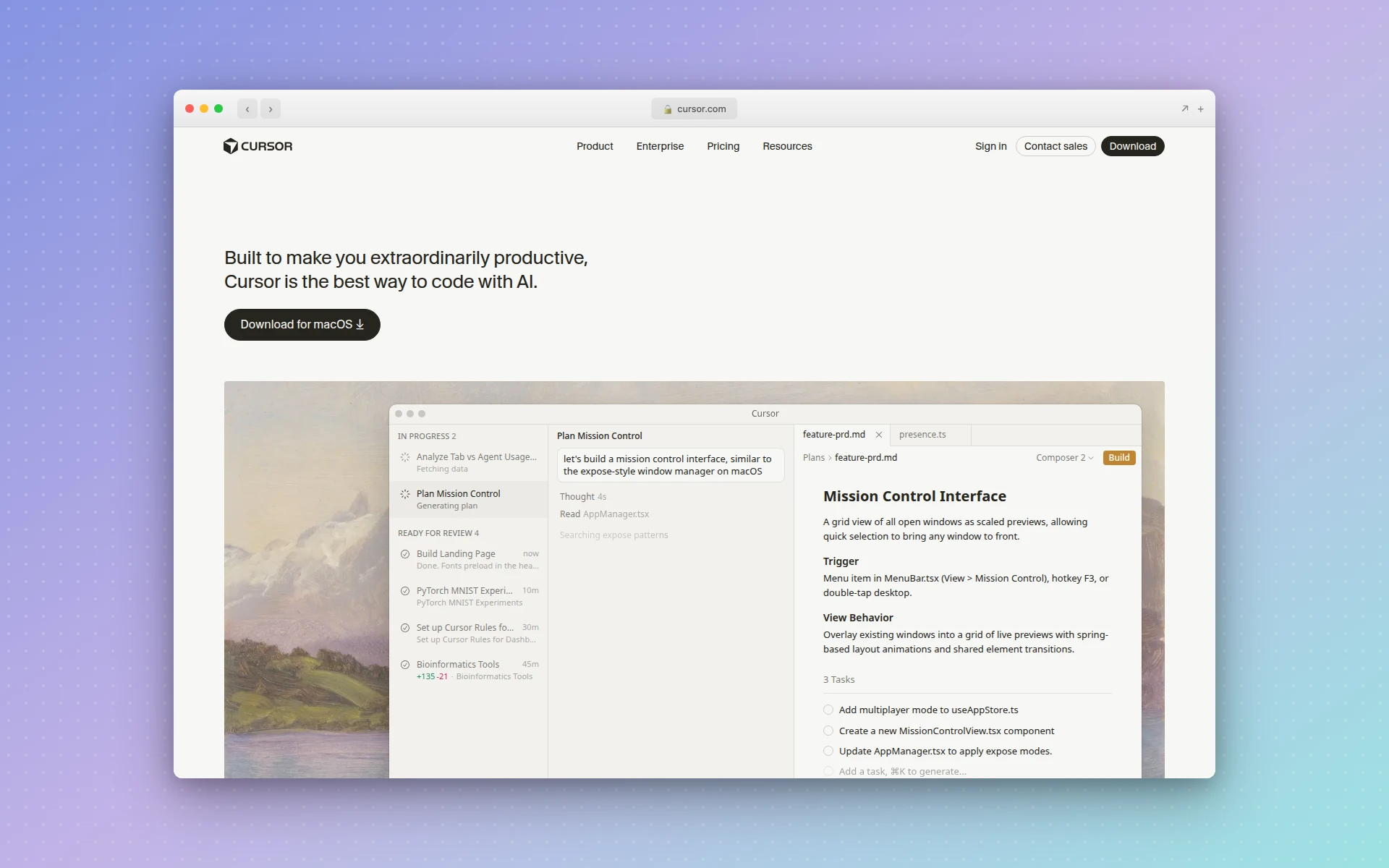 Cursor is an AI-native code editor built on VS Code with deep project awareness.
How to Set Up Cursor AI (Step by Step)
Getting Cursor running takes under five minutes. Here is exactly what to do.
Step 1: Download and Install
Go to cursor.com and download the installer for macOS, Windows, or Linux. Run the installer. It works like any standard application — no terminal commands required.
Step 2: Import Your VS Code Settings
On first launch, Cursor asks if you want to import your VS Code configuration. Say yes. This pulls in your extensions, themes, keybindings, and workspace settings so everything feels familiar immediately.
If you skip this step, you can still import later from Settings > General > Import from VS Code.
Step 3: Sign In and Choose a Plan
Sign in using GitHub, Google, or email. Cursor offers five plans:
| Plan | Price | What You Get |
|---|---|---|
| Hobby | Free | 2,000 completions/month, 50 slow premium requests |
| Pro | $20/mo | 500 fast premium requests, unlimited completions |
| Pro+ | $60/mo | 3x usage credits, everything in Pro |
| Ultra | $200/mo | 20x usage credits, priority new features |
| Business | $40/user/mo | Pro-level AI + admin controls, centralized billing |
The free plan is enough to evaluate whether Cursor works for you. Pro is where most individual developers land.
Step 4: Configure AI Model Preferences
Go to Settings > Models. Cursor Pro gives you access to:
- Claude Opus 4.6 and Claude Sonnet 4.6 (Anthropic)
- GPT-5.4 (OpenAI)
- Gemini 3 Pro (Google)
- Grok Code (xAI)
Auto mode is recommended for most developers. It selects the best model for each task automatically and counts as unlimited usage. Manually selecting premium models draws from your monthly credit pool.
Step 5: Set Up Project Rules
This is the step most developers skip, and it makes the biggest difference. Create a .cursor/rules/ directory in your project root and add markdown files that describe your coding standards.
.cursor/
  rules/
    code-style.md      # Naming conventions, formatting preferences
    architecture.md    # Project structure, patterns to follow
    tech-stack.md      # Frameworks, libraries, and version constraints
When you reference files with @ in the agent panel, these rules automatically apply. The result: AI-generated code that matches your team’s style on the first try.
Step 6: Start Coding with AI
You are now set up. Open a project and try these three things:
- Start typing — Cursor will offer inline completions automatically
- Press Cmd+K (Mac) or Ctrl+K (Windows/Linux) — Highlight code and describe a change
- Press Cmd+I (Mac) or Ctrl+Shift+A (Windows/Linux) — Open Agent mode for multi-file tasks
Essential Cursor AI Features
Cursor packs a lot of capability. These are the features that matter most in daily use.
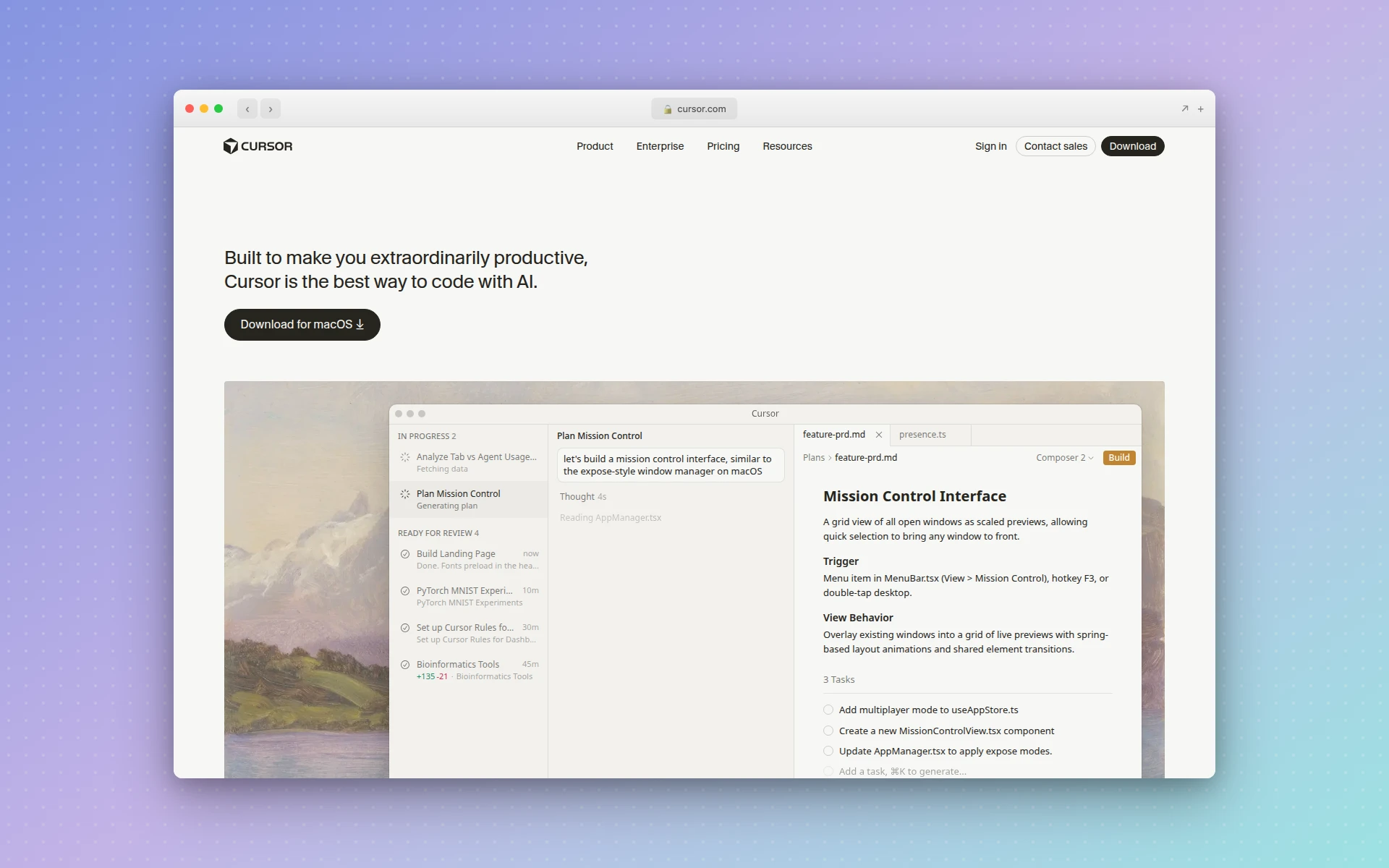 Cursor’s feature set includes Tab completion, Agent mode, Background Agents, and Automations.
Tab Completion
Cursor predicts what you are about to type and offers multi-line suggestions as you code. Unlike basic autocomplete, it uses your project context — open files, imports, and architecture — to make predictions that actually make sense.
Tab completion is the feature you will use most. It fires automatically as you type. Press Tab to accept a suggestion or keep typing to ignore it. The predictions improve over time as Cursor learns your project patterns.
Cmd+K: Inline Editing
Select a block of code, press Cmd+K, and describe what you want to change in plain English. Cursor rewrites the selected code in place and shows you a diff.
Use cases:
- “Add error handling to this function”
- “Convert this to async/await”
- “Make this component responsive”
This is the fastest way to make targeted changes without leaving your editor flow.
Agent Mode (Cmd+I)
Agent mode is Cursor’s most powerful feature and the core of what makes vibe coding possible. Press Cmd+I to open it, and you get an AI that can:
- Read and edit multiple files simultaneously
- Run terminal commands
- Create new files and directories
- Install dependencies
- Iterate on code until tests pass
Describe a feature in plain English and Agent mode builds it across your entire project. It generates a plan, makes the edits, and shows you diffs for every file it touches. You review and accept or reject each change.
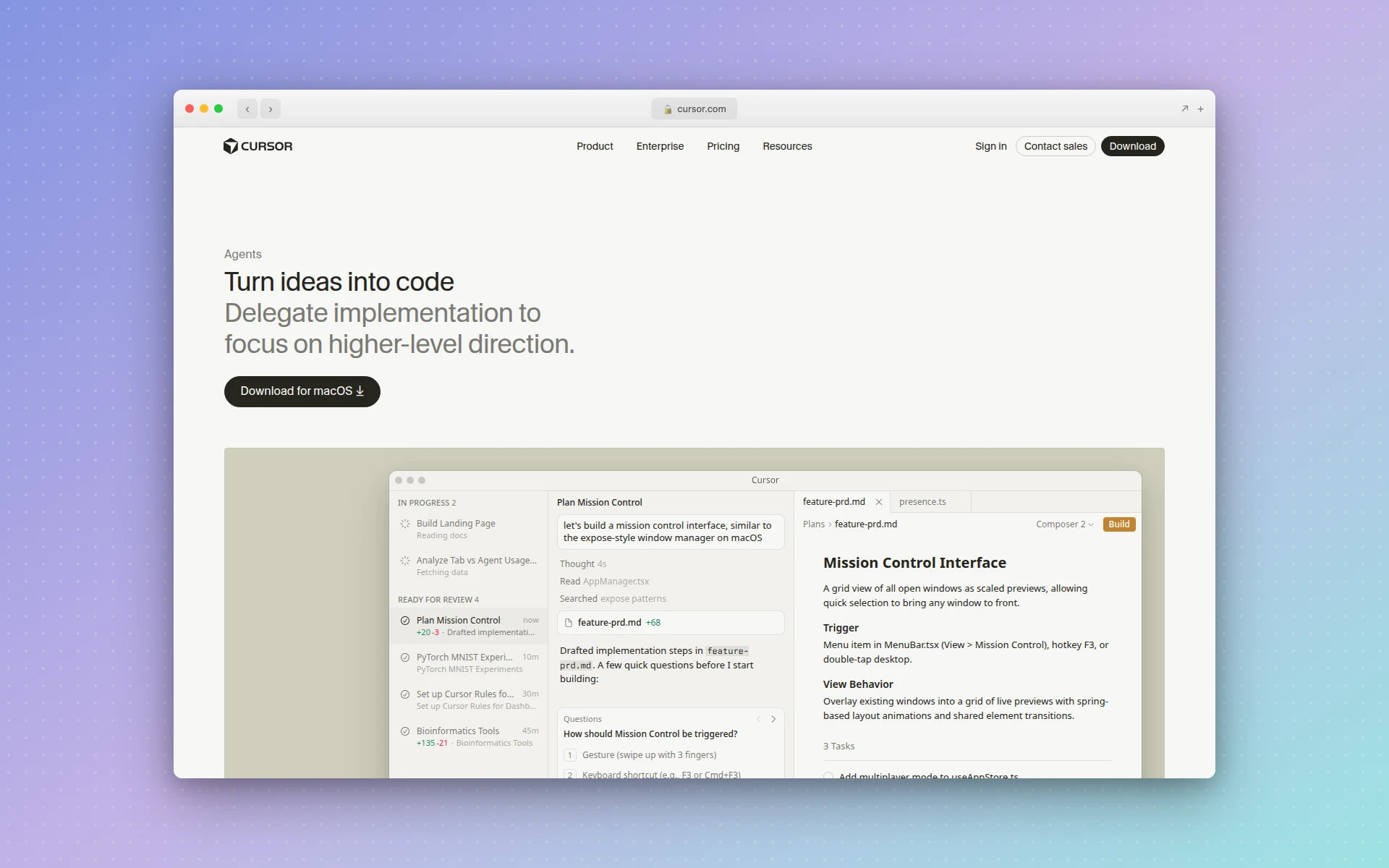 Agent mode lets you describe features in plain English and builds them across multiple files.
@ References
The @ symbol is Cursor’s context control system. Instead of copying code into chat, reference it directly:
- @filename — Reference a specific file
- @folder — Include an entire directory
- @docs — Pull in documentation
- @web — Search the web for context
- @codebase — Search across your entire project
This is how you give the AI exactly the context it needs without overwhelming it with your whole codebase.
Background Agents
Background Agents run coding tasks autonomously while you work on something else. You describe a task, Cursor spins up an isolated environment on AWS, and the agent works independently on a separate branch.
When it finishes, you get a pull request to review.
Use Background Agents for:
- Refactoring tasks that touch many files
- Writing test suites
- Migrating code patterns across a project
- Fixing bugs while you work on features
Background Agents run on isolated VMs with internet access, auto-execute terminal commands, and can iterate on tests until they pass. Your main workspace stays clean while the agent works.
Automations (New in 2026)
Cursor now supports automations — always-on agents triggered by external events. Connect Slack, Linear, GitHub, PagerDuty, or webhooks, and Cursor agents respond automatically.
Example: A GitHub issue gets labeled “bug” and a Cursor automation creates a fix branch, writes the patch, and opens a PR. This moves Cursor beyond a code editor into an engineering automation platform.
Cursor also supports MCP (Model Context Protocol) servers, which let you connect external tools like databases, design generators, and browser automation directly into your AI workflow. See our guide to the best MCP servers for AI coding tools for setup instructions. Both Cursor and Claude Code support reusable agent workflows — see our Claude Code skills guide for how to build markdown-driven skills that automate multi-step coding tasks. If you’re trying to decide between the two, our Claude Code vs Cursor comparison breaks down pricing, context windows, MCP support, and which one wins for different workflows.
Cursor Keyboard Shortcuts Cheat Sheet
| Action | Mac | Windows/Linux |
|---|---|---|
| Tab completion | Tab | Tab |
| Inline edit | Cmd+K | Ctrl+K |
| Open Agent | Cmd+I | Ctrl+Shift+A |
| Toggle AI chat | Cmd+L | Ctrl+L |
| Accept diff | Cmd+Y | Ctrl+Y |
| Reject diff | Cmd+N | Ctrl+N |
| New chat | Cmd+Shift+I | Ctrl+Shift+I |
| Toggle terminal | Ctrl+` | Ctrl+` |
Print this list and keep it next to your monitor for the first week. The shortcuts become muscle memory quickly.
Cursor vs GitHub Copilot: Which Should You Use?
This is the question every developer asks. Here is the honest answer based on daily use of both tools.
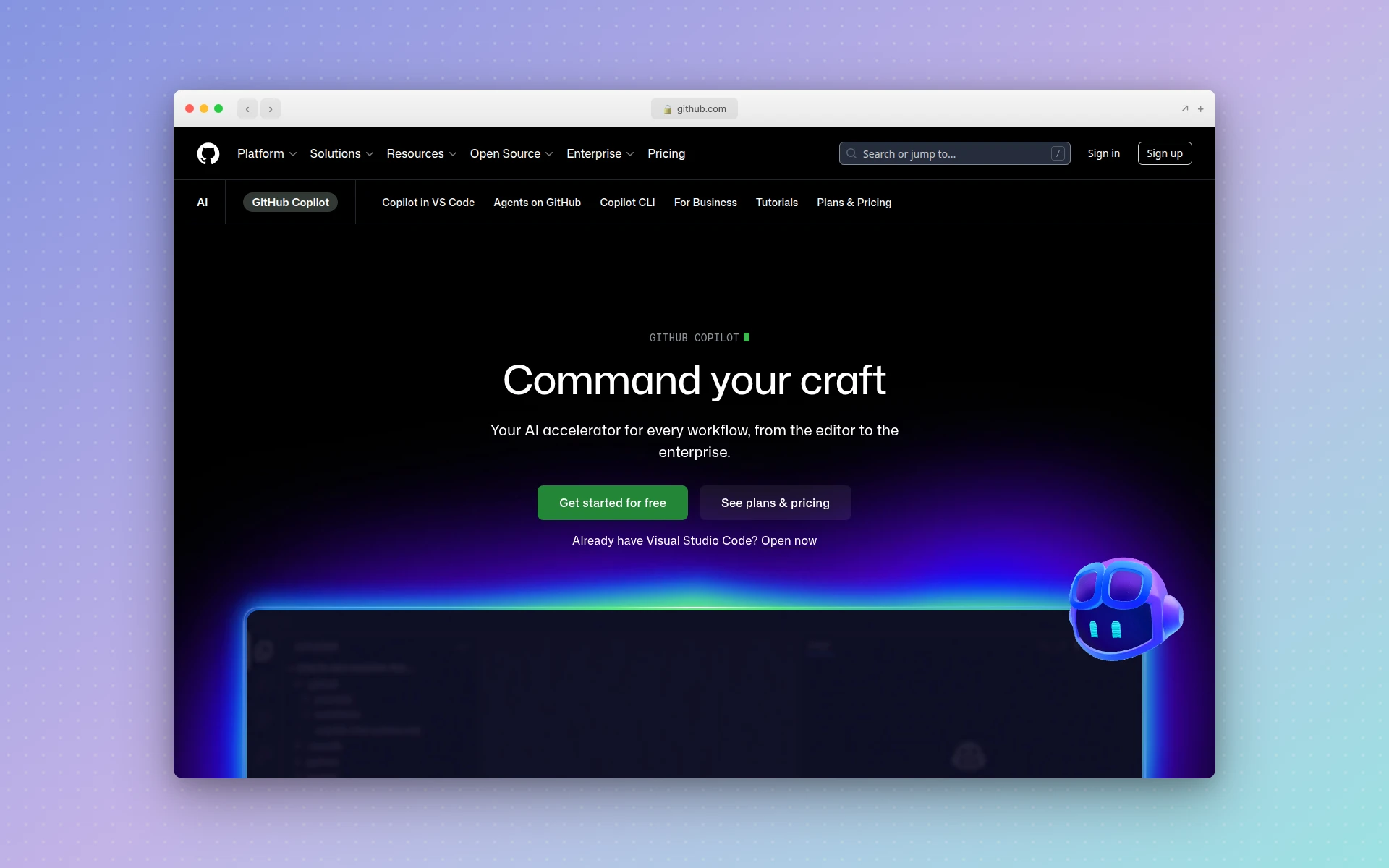 GitHub Copilot integrates AI coding assistance into your existing IDE as an extension.
Cursor is better for multi-file editing, agentic workflows, and developers who want an AI-native IDE. GitHub Copilot is better for inline completions, wider IDE support, and teams that want AI assistance at half the cost. Neither tool is universally better. The right choice depends on your workflow.
Side-by-Side Comparison
| Feature | Cursor | GitHub Copilot |
|---|---|---|
| Type | Standalone AI code editor | Extension for existing IDEs |
| Price | $20/mo (Pro) | $10/mo (Pro) |
| Free tier | 2,000 completions, 50 slow requests | 2,000 completions, 50 chat requests |
| IDE support | Cursor only (VS Code fork) | VS Code, JetBrains, Neovim, Xcode |
| Multi-file editing | Excellent (Composer/Agent) | Limited (agent mode in preview) |
| Background agents | Yes (runs on AWS VMs) | Yes (GitHub Copilot Coding Agent) |
| Codebase awareness | Deep (full project context) | Moderate (growing with workspace indexing) |
| Model access | Claude Opus 4.6, GPT-5.4, Gemini 3 Pro | Claude Sonnet 4.6, GPT-4o, Gemini 2.5 Pro |
| Benchmark (SWE-bench) | 52% solve rate, 63s avg | 56% solve rate, 90s avg |
| Best for | Refactoring, agentic workflows | Inline completions, ecosystem integration |
When to Choose Cursor
Choose Cursor if you regularly refactor across dozens of files, want AI that understands your full project architecture, or prefer an AI-native IDE where every feature is designed around AI assistance. The $20/month premium over Copilot pays for itself the first time you use Agent mode to build a feature across 15 files in one conversation.
When to Choose GitHub Copilot
Choose Copilot if you use JetBrains, Neovim, or Xcode (Cursor only works in its own editor). Choose it if you mostly need fast inline completions and GitHub integration. At $10/month, Copilot delivers 90% of what most developers need at half the price. For full-stack app generation rather than code editing, see our guide to Bolt.new alternatives which covers tools like Lovable and Replit.
Can You Use Both?
Yes. Some developers use Cursor as their primary editor and keep Copilot active for its GitHub integration. The tools do not conflict because Cursor uses its own AI pipeline.
7 Tips for Getting the Most Out of Cursor
1. Write .cursorrules Files for Every Project
This is the single highest-impact thing you can do. Rules tell the AI your coding standards, preferred patterns, and architectural decisions. Without them, Cursor generates generic code. With them, it generates code that fits your project.
2. Use Multi-Root Workspaces
Open your frontend, backend, and shared library as a single multi-root workspace. Agent mode can then edit an API endpoint, update shared TypeScript types, and adjust the frontend fetch call — all in one conversation.
3. Reference Context with @ Instead of Pasting
Stop copying code into chat. Use @filename to reference files, @docs for documentation, and @codebase to search your project. This gives the AI structured context instead of raw text dumps.
4. Let Agent Mode Run Tests Automatically
Write tests first, then describe the implementation you want. With YOLO mode enabled, Agent will run tests automatically and iterate on the code until all tests pass. This is test-driven development with an AI executing the loop.
5. Use Background Agents for Parallel Work
Do not wait for large refactoring tasks to complete. Spin up a Background Agent, describe the task, and keep working on your main feature. The agent works on a separate branch and opens a PR when done.
6. Start Small, Then Go Bigger
Begin each Agent conversation with a focused request. Once it delivers the first piece, expand the scope. This produces better results than dumping a massive specification upfront.
7. Review Every Diff Before Accepting
AI-generated code requires review. Cursor shows you diffs for every change. Read them. The tool saves you hours of writing time, but the five minutes you spend reviewing prevents bugs that would cost hours to debug.
Cursor AI Pricing in 2026
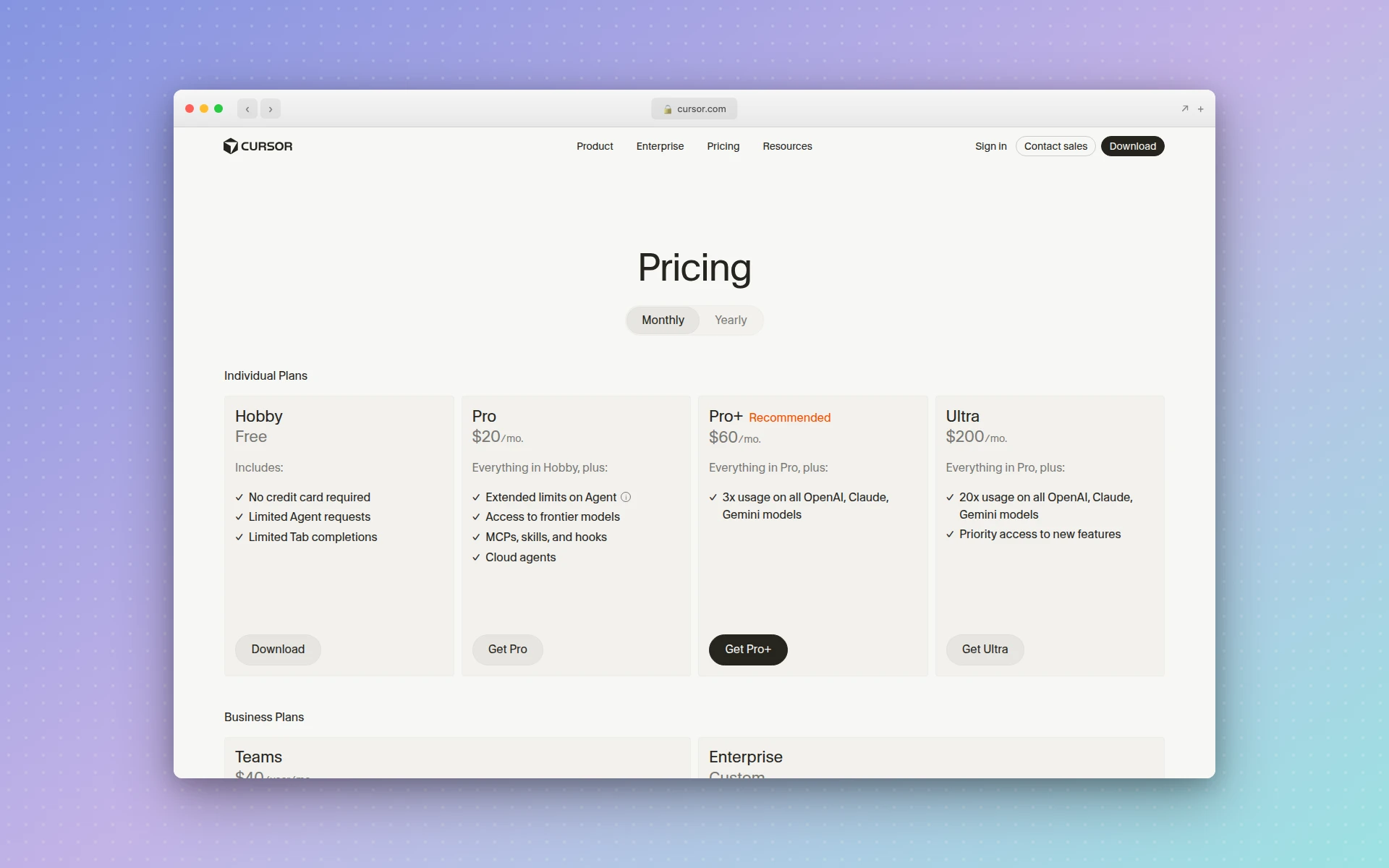 Cursor’s pricing page showing all available plans from Hobby (free) to Ultra ($200/mo).
Cursor switched to credit-based pricing in June 2025. Every paid plan includes a monthly credit pool equal to the plan price in dollars. Credits deplete based on which AI models you use.
The key detail: Auto mode is unlimited and does not draw from your credit pool. It selects the best model for each task automatically. Manual model selection (picking Claude Opus or GPT-5.4 specifically) uses credits.
For most developers, Pro at $20/month is the right plan. The free tier works for evaluation but runs out fast during active development. Pro+ at $60/month makes sense if you consistently hit your credit limit.
Who Should Use Cursor AI?
Cursor is the right tool if you:
- Write code daily and want AI deeply integrated into your editor
- Do multi-file refactoring or cross-project changes regularly
- Want to describe features in plain English and have AI build them
- Are comfortable reviewing AI-generated diffs before accepting
Cursor is probably not the right tool if you:
- Need an IDE other than VS Code (JetBrains, Xcode, Neovim)
- Mostly need inline completions without agentic features
- Are on a tight budget and need the cheapest option ($10/mo Copilot)
If you are building web applications, landing pages, or UI prototypes, you might also want to look at AI design tools that generate interfaces from text prompts, or no-code app builders if you want to skip coding entirely. Both are different kinds of AI assistance that complement Cursor’s code-focused workflow.
Frequently Asked Questions
Is Cursor AI free?
Cursor offers a free Hobby plan that includes 2,000 code completions per month and 50 slow premium model requests. The free plan gives you full access to the editor and basic AI features. For heavier use, paid plans start at $20 per month for Pro.
What is the difference between Cursor and GitHub Copilot?
Cursor is a standalone AI-native code editor with deep codebase awareness and multi-file editing via Agent mode. GitHub Copilot is an extension for existing editors. Cursor excels at large-scale refactors and agentic workflows. Copilot excels at inline suggestions, wider IDE support, and costs half the price at $10 per month.
Is Cursor AI worth $20 a month?
For professional developers doing multi-file refactoring or agentic workflows, Cursor Pro pays for itself in the first week. The average developer saves 3.6 hours per week with AI coding tools. If you mostly need inline completions, the free Copilot tier may be sufficient.
Can beginners use Cursor AI?
Yes. Cursor is built on VS Code, so the interface is familiar. Beginners can use Agent mode to describe what they want in plain English. The learning curve is minimal if you already know VS Code basics.
What AI models does Cursor use?
Cursor Pro includes access to GPT-5.4, Claude Opus 4.6, Claude Sonnet 4.6, Gemini 3 Pro, and Grok Code. Auto mode selects the best model per task and is unlimited. Manual model selection draws from your monthly credit pool.
Does Cursor replace VS Code?
Cursor is built on VS Code and supports the same extensions, themes, keybindings, and settings. Most developers treat it as a direct replacement. You can import your VS Code configuration during setup and everything works identically with added AI capabilities.