TL;DR: MCP servers turn your AI coding assistant into a power tool that can read Figma designs, push to GitHub, query databases, automate browsers, and manage projects — all from a single conversation. We tested 15 MCP servers across design, code, data, browser, and productivity categories. Figma MCP is essential for any design-to-code workflow, AIDesigner MCP generates production-ready UI on demand, and GitHub MCP is the single most useful server for everyday development. Here are the best MCP servers worth setting up in 2026.
What Are the Best MCP Servers?
The best MCP servers in 2026 are Figma MCP for design-to-code workflows, AIDesigner MCP for AI-powered UI generation, GitHub MCP for repository management, Playwright MCP for browser automation, and Supabase MCP for database operations. These servers extend AI coding tools like Claude Code, Cursor, and Windsurf with real-world capabilities beyond code generation.
What Is an MCP Server?
MCP stands for Model Context Protocol, an open standard created by Anthropic that lets AI assistants connect to external tools and data sources through a unified interface. An MCP server is a lightweight program that exposes specific capabilities — called “tools” — that your AI agent can call during a conversation.
Think of it this way: without MCP, your AI coding tool can only read and write files. With MCP servers, it can push code to GitHub, query your production database, read your Figma designs, automate a browser, and post updates to Slack — all without leaving your editor.
The protocol launched in late 2024 and adoption has been explosive. As of early 2026, over 10,000 MCP servers have been indexed across public registries, monthly SDK downloads hit 97 million by November 2025, and Anthropic donated MCP to the Linux Foundation’s Agentic AI Foundation in December 2025 — with AWS, Google, Microsoft, Salesforce, and Snowflake as backers. Every major AI coding tool now supports the protocol natively. Claude Code, Cursor, and Windsurf all use the same JSON configuration format, which means you configure a server once and it works across all three tools. If you are still choosing an editor, our Cursor vs Windsurf comparison covers how each one handles agents, pricing, and design workflows.
How MCP Servers Work
Every MCP server follows the same pattern:
- You install the server (usually an npm package or binary)
- You add it to your config file (JSON with the server command and any API keys)
- Your AI agent discovers the server’s tools automatically on startup
- The agent calls tools as needed during your conversation
The configuration is nearly identical across clients. Here is what a typical setup looks like:
Claude Code (~/.claude/settings.json or project .claude/settings.json):
{
  "mcpServers": {
    "server-name": {
      "command": "npx",
      "args": ["-y", "@package/server-name"],
      "env": {
        "API_KEY": "your-key-here"
      }
    }
  }
}
Cursor (.cursor/mcp.json in project root):
{
  "mcpServers": {
    "server-name": {
      "command": "npx",
      "args": ["-y", "@package/server-name"],
      "env": {
        "API_KEY": "your-key-here"
      }
    }
  }
}
Windsurf (~/.codeium/windsurf/mcp_config.json):
{
  "mcpServers": {
    "server-name": {
      "command": "npx",
      "args": ["-y", "@package/server-name"],
      "env": {
        "API_KEY": "your-key-here"
      }
    }
  }
}
The format is almost identical. The only difference is the file location. This means every MCP server in this guide works with all three tools.
Quick Comparison: Best MCP Servers at a Glance
| MCP Server | Category | Key Capability | Auth Required | Best For |
|---|---|---|---|---|
| Figma MCP | Design | Read designs, extract styles, get layout data | Figma token | Design-to-code workflows |
| AIDesigner MCP | Design | Generate & refine UI from prompts, repo-aware | OAuth (browser sign-in) | AI-powered UI generation for any project |
| GitHub MCP | Code | Repos, PRs, issues, code search, actions | GitHub token | Daily development workflow |
| Playwright MCP | Browser | Navigate pages, click elements, take screenshots | None | Testing and web automation |
| Supabase MCP | Data | Query tables, manage schemas, run migrations | Supabase token | Full-stack Supabase projects |
| Filesystem MCP | Code | Read/write files, search directories | None | Local file management |
| Brave Search MCP | Search | Web search, news, local results | Brave API key | Real-time web research |
| PostgreSQL MCP | Data | SQL queries, schema inspection | Connection string | Database analysis |
| Slack MCP | Productivity | Read/post messages, search history | Slack bot token | Team communication |
| Puppeteer MCP | Browser | Headless Chrome, screenshots, scraping | None | Web scraping and screenshots |
| Linear MCP | Productivity | Issues, sprints, project tracking | Linear API key | Project management |
| Notion MCP | Productivity | Pages, databases, workspace search | Notion token | Documentation and planning |
| Memory MCP | Utility | Persistent knowledge graph storage | None | Cross-session context |
| Sentry MCP | Code | Error queries, stack traces, debugging | Sentry token | Production debugging |
| Tavily MCP | Search | AI-optimized web search results | Tavily API key | Research-heavy tasks |
Design MCP Servers
1. Figma MCP
Best for: Translating Figma designs into production code
Docs: Figma Dev Mode MCP server
Figma MCP is the single highest-volume keyword in the MCP ecosystem for good reason — it solves the oldest problem in web development: turning designs into code. Figma’s official Dev Mode MCP server launched in June 2025, and a bidirectional Claude Code integration (design-to-code plus code-to-canvas) followed in February 2026. It connects your AI coding assistant directly to your Figma files.
Instead of manually inspecting Figma’s Dev Mode, copying CSS values, and translating layouts into code, you point your AI agent at a Figma file and say “implement this design.” The agent reads the layer tree, extracts spacing, typography, colors, variables, and component structure, then generates matching code. A separate community server, Framelink (figma-developer-mcp), covers similar ground if you prefer a lightweight npm package.
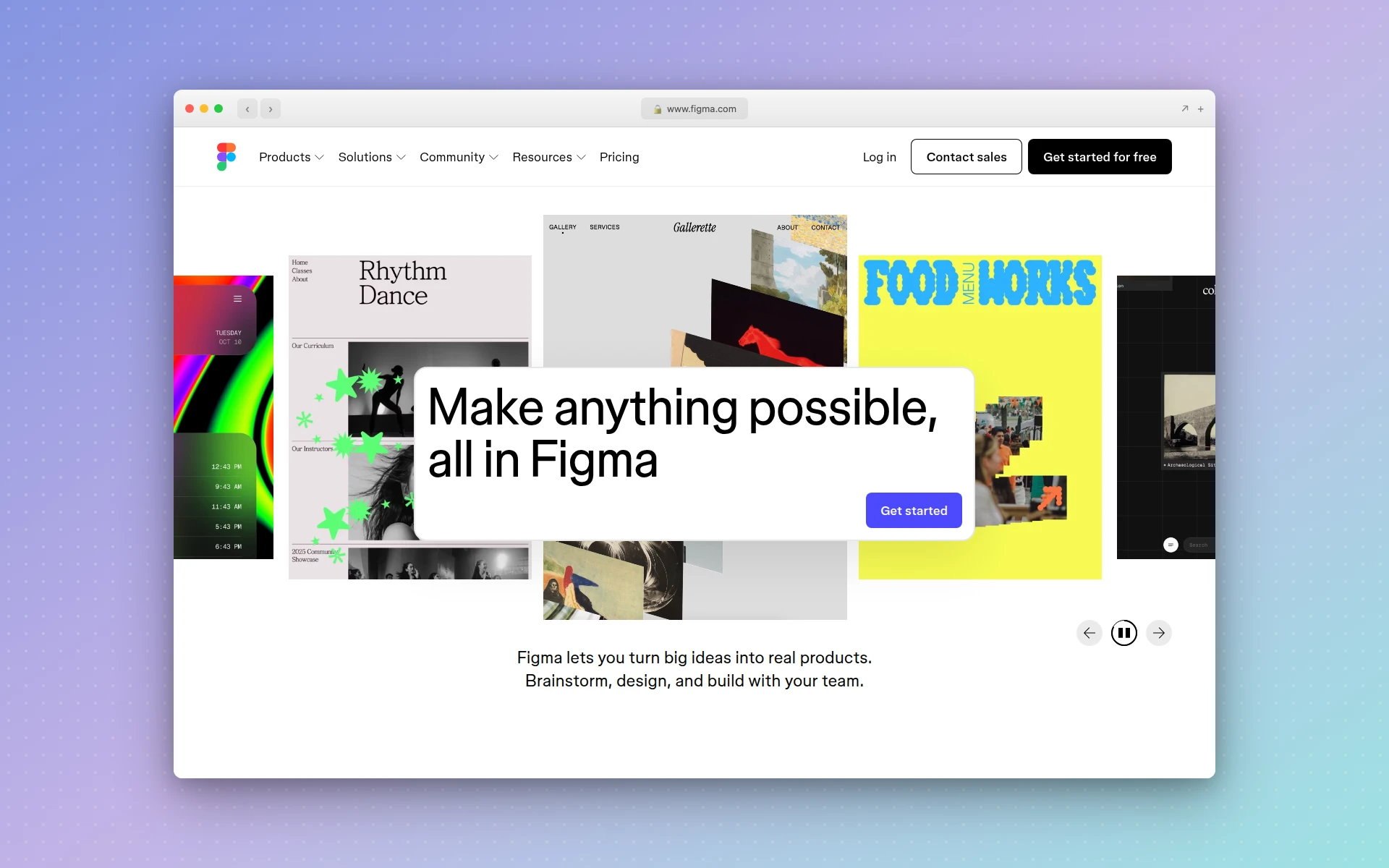 Figma’s official MCP server bridges the gap between design files and AI-powered code generation.
Key tools exposed:
get_file— Retrieve a complete Figma file with all pages, frames, and componentsget_file_nodes— Extract specific nodes by ID for targeted code generationget_file_styles— Pull color, text, and effect styles from the design systemget_file_components— List all reusable components and their propertiesget_image— Export specific frames or elements as images
Setup config:
The official Dev Mode MCP server runs remotely, so you point your client at Figma’s hosted endpoint:
{
  "mcpServers": {
    "figma": {
      "type": "http",
      "url": "https://mcp.figma.com/mcp"
    }
  }
}
Authentication happens through Figma’s OAuth flow on first connect — no personal access token to paste. If you prefer the community Framelink server instead, install figma-developer-mcp and supply a FIGMA_API_KEY generated under Figma > Settings > Personal Access Tokens.
Pros:
- Official Figma server with reliable API coverage
- Extracts accurate layout data including auto-layout, constraints, and spacing
- Works with any Figma file you have access to
- Component-aware — understands design system structure
- Free to use (only requires a Figma account)
Cons:
- Read-only — cannot modify Figma files from your AI agent
- Large files with many pages can be slow to fetch
- Does not extract interaction/prototype data
- Requires manual node ID lookup for precise element targeting
Best fit if: You work in a team where designers use Figma and developers implement those designs in code. Figma MCP eliminates the handoff friction and lets your AI agent read designs directly.
2. AIDesigner MCP
Best for: Generating production-ready UI designs on demand — no designer, no Figma file, no context switching
Website: aidesigner.ai/ai-ui-design-mcp | Docs: Setup guide
Figma MCP reads existing designs. AIDesigner MCP creates them. This is the server that closes the biggest gap in AI-assisted development: you can write backend logic, query databases, manage repos, and automate browsers through MCP — but until now, generating a professional UI still meant leaving your editor and opening a separate design tool.
AIDesigner MCP connects the AIDesigner platform — purpose-built for AI UI generation — directly into your coding workflow. Tell Claude Code or Cursor “design a SaaS pricing page with a free tier, pro tier, and enterprise tier” and you get back production-ready HTML with Tailwind CSS, proper visual hierarchy, and clean typography. Not a wireframe. Not a template. A polished interface you can ship or port into your React/Next.js/Vue components.
The server is repo-aware: it automatically analyzes your framework (Next.js, React, Vue, Svelte), component libraries (Radix, shadcn/ui), CSS tokens, and route structure, then generates designs that match your existing stack. This means the output slots into your codebase instead of requiring a rewrite.
What makes this different from v0 or Bolt is that AIDesigner runs inside your AI coding assistant through MCP. You don’t copy-paste from a browser tab. The design lands as a local artifact with an adoption brief that maps components to your routes and tokens. You can then refine it with natural language — “make the hero section taller, swap the CTA to a gradient button” — without regenerating from scratch.
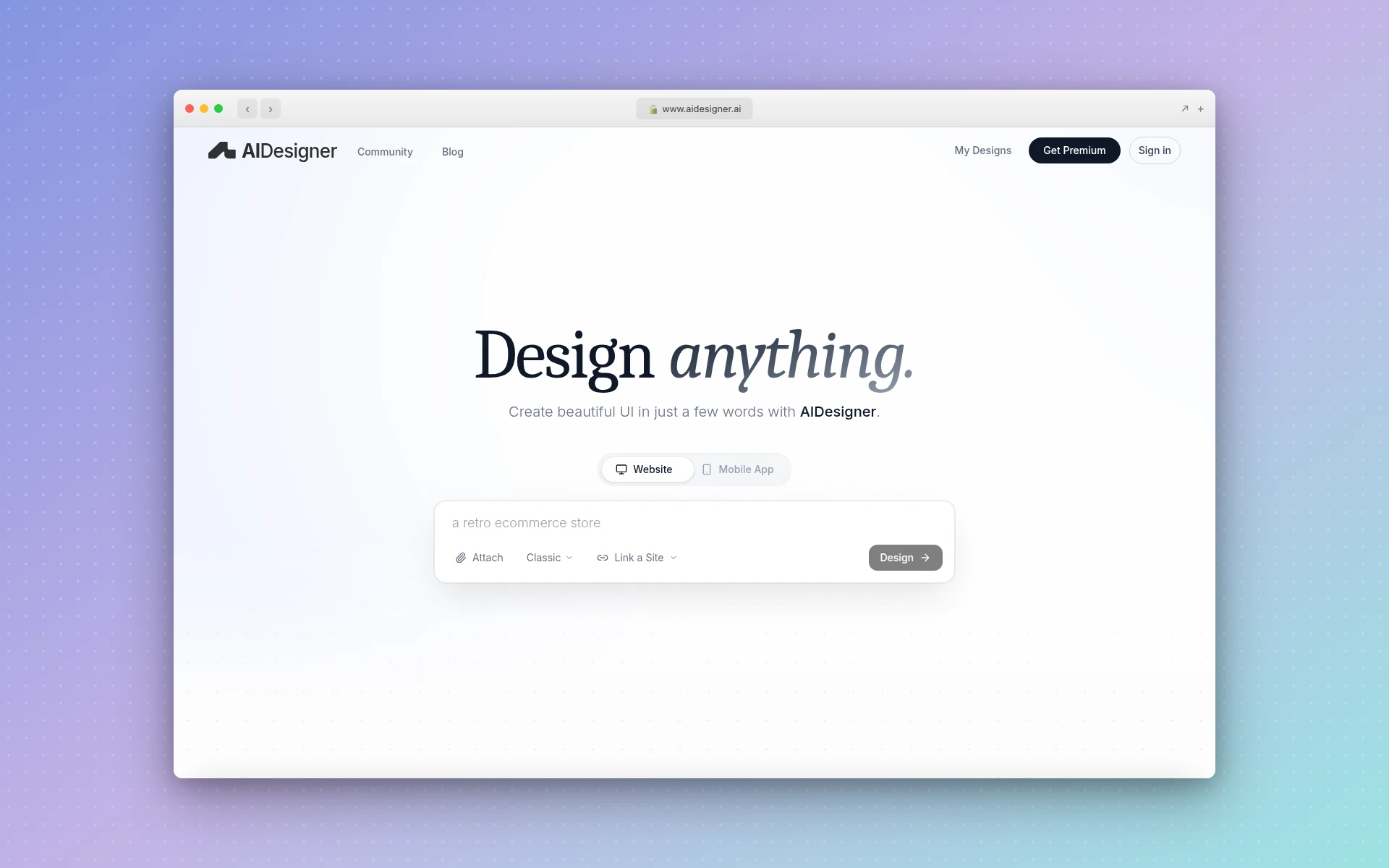 AIDesigner MCP generates professional UI designs from text prompts directly inside your AI coding workflow — no Figma file needed.
Key tools exposed:
generate_design— Create complete UI designs from text descriptions at desktop (1440px) or mobile (430px) viewports. Supports three reference modes:inspire(use a URL as visual reference),clone(replicate a site 1:1), andenhance(improve an existing page)refine_design— Iterate on any previous design with natural language feedback. Adjusts layout, colors, spacing, or content without starting overgenerate_website_design_imageandgenerate_image— Produce premium website reference images and GPT Image 2 assets, optionally steered by a saved brand kitgenerate_branding_kit_variationsandcreate_brand_kit_from_variation— Generate a 3x3 board of nine brand directions, then save a chosen tile as a reusable brand kit (there’s alsocreate_brand_kit_from_urlto extract a kit from any existing site)extract_image_assets— Pull embedded photos, logos, icons, and textures out of a generated image into separate, reusable canvasesget_credit_statusandwhoami— Check remaining credits, usage, and your connected account identity
Setup config:
The fastest setup is one command:
npx -y @aidesigner/agent-skills init
This registers the AIDesigner HTTP MCP server in your project’s .mcp.json and installs Claude Code agents and commands. The resulting config:
{
  "mcpServers": {
    "aidesigner": {
      "type": "http",
      "url": "https://api.aidesigner.ai/api/v1/mcp"
    }
  }
}
Authentication uses OAuth — your MCP client opens a browser window for sign-in on first connect. No API keys to manage. Run npx @aidesigner/agent-skills doctor to verify your setup. See the full setup guide for details, and our Claude Code frontend design guide for the end-to-end workflow combining AIDesigner MCP with Anthropic’s Frontend Design plugin.
Pros:
- Generates production-ready HTML/CSS/Tailwind from natural language — not wireframes or placeholders
- Repo-aware context — detects your framework, tokens, and component library to generate designs that fit your stack
- Three reference modes (inspire, clone, enhance) let you use any URL as a starting point
- Iterative refinement without regeneration — change specific sections through follow-up prompts
- Local artifact capture with PNG previews and adoption briefs for porting into your codebase
- OAuth authentication — no environment variables to configure
Cons:
- Requires an AIDesigner account (free tier includes credits to try, Pro starts at $25/month)
- Generated designs are HTML/Tailwind — you’ll port them into your framework components (the adoption brief helps)
- Newer server with a smaller community compared to official Anthropic servers
Pricing:
AIDesigner offers a free tier with 5 lifetime credits (no card required) to evaluate the output quality. Pro starts at $25/month for 100 credits (1 credit = 1 design generation), scaling up to $2,250/month for 10,000 credits. Yearly billing saves approximately 17%.
Best fit if: You are building UI-heavy applications and don’t have a dedicated designer — or you do, but want to prototype faster. AIDesigner MCP is the fastest path from “I need a pricing page” to production-ready code that matches your existing design system.
Code & Version Control MCP Servers
3. GitHub MCP
Best for: Managing repositories, pull requests, issues, and CI/CD without leaving your editor
Repository: github/github-mcp-server (GitHub’s official server)
GitHub MCP is the most universally useful MCP server for developers. It exposes the full GitHub API surface through a clean set of tools that let your AI agent create branches, commit code, open pull requests, manage issues, search code across repositories, and monitor CI/CD workflows. GitHub now maintains its own official server, and the recommended way to connect is the hosted remote endpoint — no local install, and updates apply automatically.
The practical impact is significant. Instead of context-switching to the GitHub web UI to create an issue, review a PR, or check why a workflow failed, you describe what you need and your AI agent handles it. This is especially powerful combined with Claude Code’s agentic capabilities — the agent can write code, commit it, push a branch, and open a PR in a single conversation.
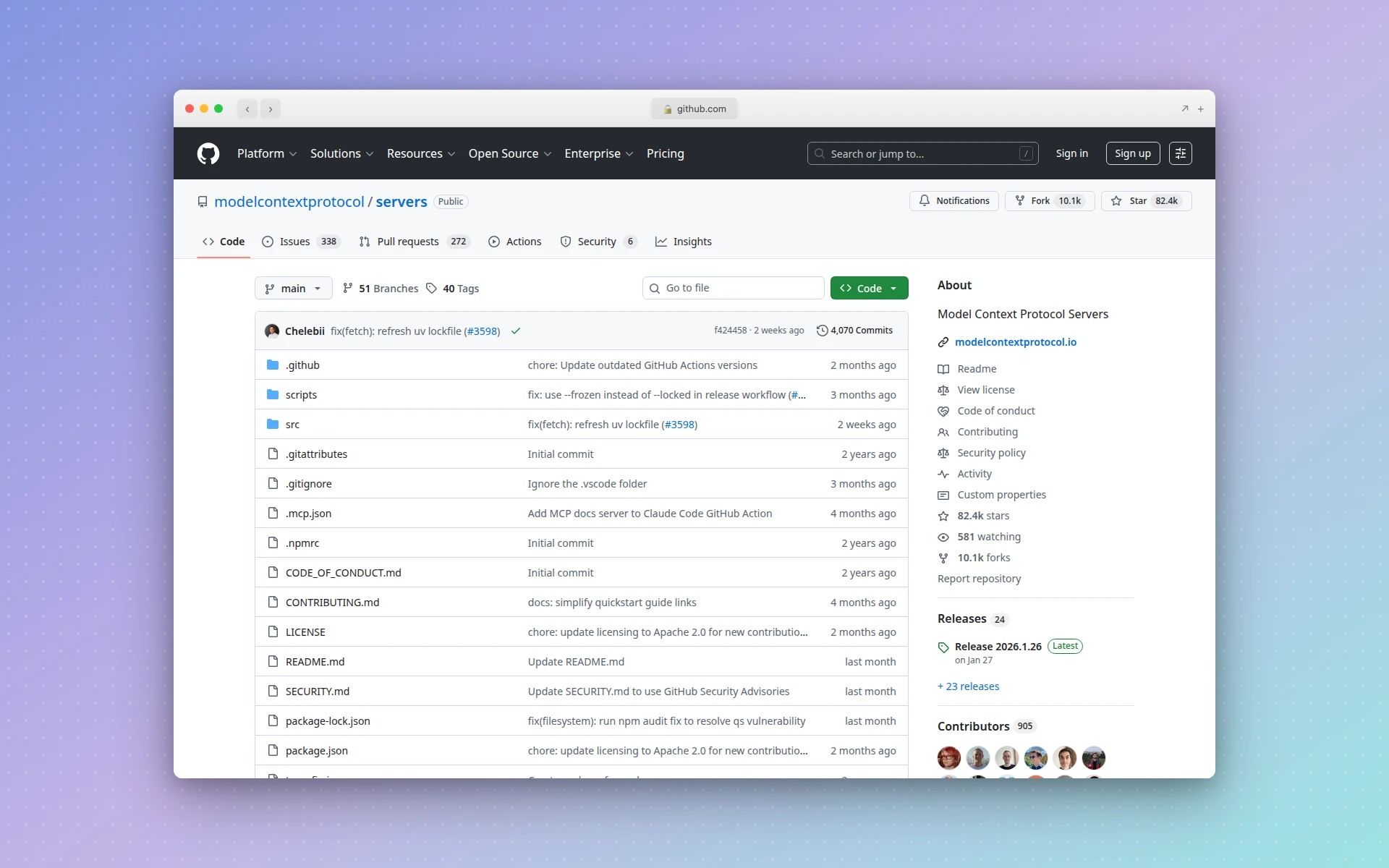 GitHub’s official MCP server lets AI agents manage your entire Git workflow from inside the conversation.
Key tools exposed:
create_or_update_file— Commit file changes directly to a repositorycreate_pull_request— Open PRs with title, body, base branch, and head branchlist_issues/create_issue— Query and create issues with labels and assigneessearch_code— Search code across all repositories you have access toget_pull_request_diff— Read PR diffs for code review workflowslist_workflow_runs— Monitor GitHub Actions CI/CD status
Setup config:
The recommended path is GitHub’s hosted remote server, which authenticates over OAuth:
{
  "mcpServers": {
    "github": {
      "type": "http",
      "url": "https://api.githubcopilot.com/mcp/"
    }
  }
}
Your client walks you through GitHub sign-in on first connect. If your host does not support remote servers yet, you can still run the local github/github-mcp-server binary with a fine-grained personal access token generated under GitHub > Settings > Developer Settings > Personal Access Tokens. Grant access only to the repositories you want the AI to manage.
Pros:
- Official server maintained by GitHub with comprehensive API coverage
- Supports both read and write operations (create branches, commit, open PRs)
- Code search across all accessible repositories
- CI/CD monitoring through GitHub Actions integration
- Works with GitHub Enterprise as well as github.com
Cons:
- Token scope management requires care — do not grant more access than needed
- Rate limited by GitHub API (5,000 requests/hour for authenticated users)
- Does not support GitHub Packages or Discussions yet
Best fit if: You use GitHub for version control (which is most developers). This is the first MCP server you should install regardless of your stack.
4. Filesystem MCP
Best for: Giving your AI agent controlled access to read and write local files
Repository: modelcontextprotocol/servers (official)
The Filesystem MCP server is deceptively simple but surprisingly important. It gives your AI agent the ability to read, write, search, and manage files on your local machine within directories you explicitly allow.
Why does this matter when Claude Code and Cursor can already read files? Because the Filesystem MCP server provides sandboxed access with explicit directory allowlists. You configure exactly which directories the agent can access, and it cannot reach outside those boundaries. This is critical for security-conscious workflows and for running MCP-compatible tools that need file access.
Key tools exposed:
read_file/write_file— Read and write individual fileslist_directory— List contents of a directorysearch_files— Search for files by name patternget_file_info— Get metadata (size, modified date, permissions)create_directory— Create new directoriesmove_file— Move or rename files
Setup config:
{
  "mcpServers": {
    "filesystem": {
      "command": "npx",
      "args": [
        "-y",
        "@modelcontextprotocol/server-filesystem",
        "/path/to/allowed/directory"
      ]
    }
  }
}
The path argument defines the sandbox boundary. The agent can only access files within this directory and its subdirectories.
Pros:
- Official Anthropic-maintained server with strong security model
- Directory-level sandboxing prevents unauthorized file access
- No API key required — runs entirely locally
- Lightweight with zero external dependencies
Cons:
- Redundant if your AI tool already has native file access (Claude Code does)
- Limited to local filesystem — no cloud storage support
- No file watching or change notification capabilities
Best fit if: You need to give MCP-compatible tools controlled file access with explicit directory boundaries, or you are running a multi-agent setup where file access needs to be sandboxed.
Database MCP Servers
5. Supabase MCP
Best for: Full-stack Supabase projects — querying data, managing schemas, and creating migrations
Repository: supabase-community/supabase-mcp | Docs: Supabase MCP guide
If you build on Supabase, this MCP server turns your AI agent into a database administrator. It connects directly to your Supabase project and exposes tools for querying tables, inspecting schemas, creating migrations, managing Row Level Security (RLS) policies, and even interacting with Supabase Auth and Storage.
The power here is in the full-stack integration. Your AI agent does not just query data — it understands your Supabase project structure and can create proper migrations, set up RLS policies, and manage the entire backend workflow.
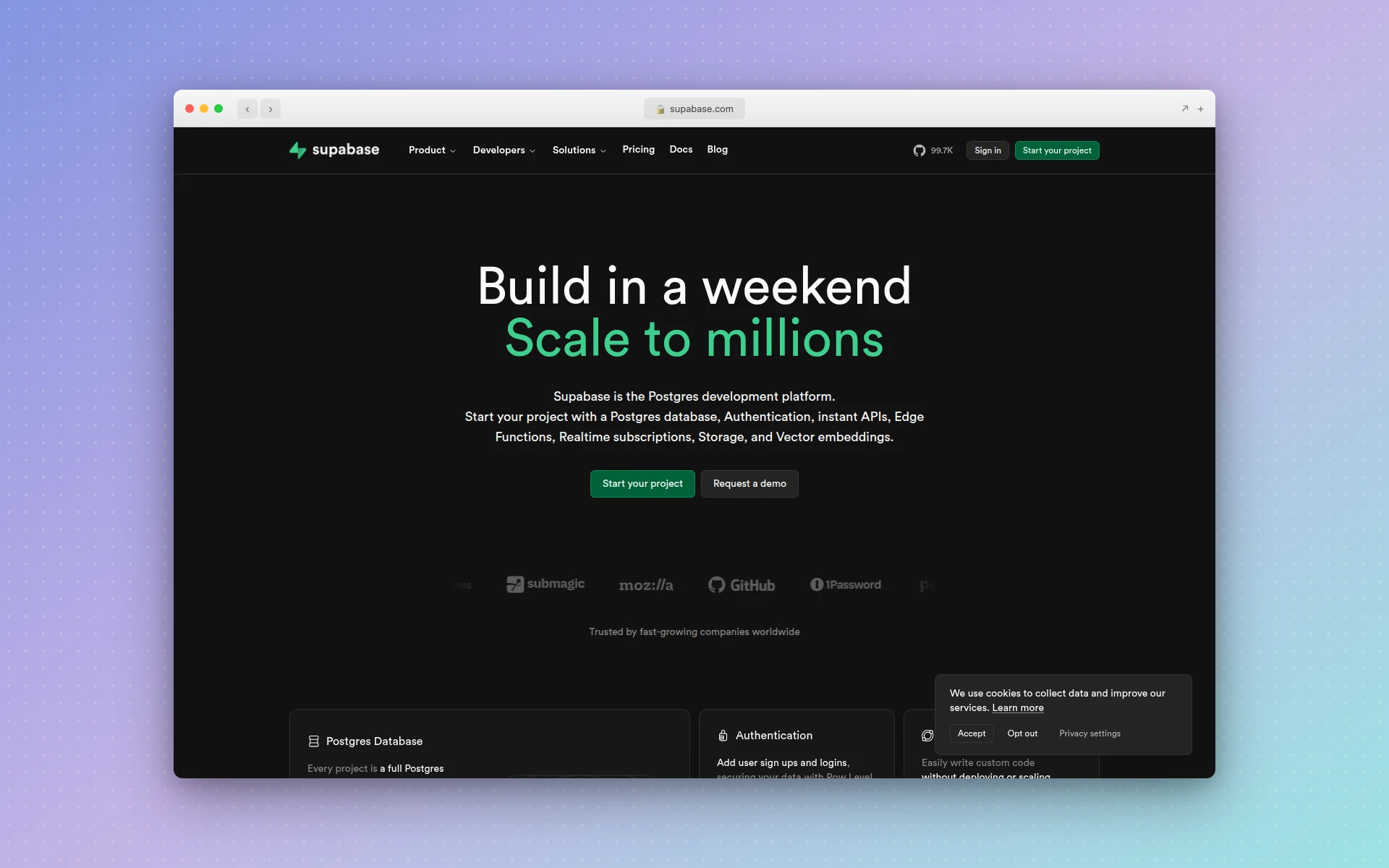 Supabase MCP gives AI agents full control over your Supabase project including database, auth, and storage.
Key tools exposed:
query— Run SQL queries against your Supabase Postgres databaselist_tables— Inspect all tables with columns, types, and relationshipsapply_migration— Create and apply database migrationsget_rls_policies— List and manage Row Level Security policieslist_functions— Query Postgres functions and edge functionsget_storage_buckets— Manage Supabase Storage buckets
Setup config:
{
  "mcpServers": {
    "supabase": {
      "command": "npx",
      "args": ["-y", "supabase-mcp-server", "--supabase-url", "https://your-project.supabase.co", "--service-role-key", "your-service-role-key"]
    }
  }
}
Find your project URL and service role key in Supabase Dashboard > Settings > API.
Pros:
- Goes beyond raw SQL — understands Supabase-specific features (RLS, Auth, Storage, Edge Functions)
- Migration support lets the AI agent make safe, reversible schema changes
- Direct Postgres access for complex queries
- Integrates with Supabase CLI for local development workflows
Cons:
- Service role key has full database access — use with caution in production
- Supabase-specific — does not work with plain Postgres or other database providers
- Write operations need careful review to avoid accidental data changes
Best fit if: You are building a full-stack application on Supabase and want your AI agent to handle database operations, schema management, and migrations alongside your frontend code.
6. PostgreSQL MCP
Best for: Direct SQL access to any Postgres database for querying and schema inspection
Repository: modelcontextprotocol/servers (official)
The PostgreSQL MCP server provides direct, read-only access to any Postgres database. Unlike the Supabase MCP (which is opinionated about Supabase-specific features), this server works with any Postgres instance — AWS RDS, DigitalOcean, Railway, self-hosted, or local.
It is intentionally read-only by default, which makes it safe to point at production databases. Your AI agent can inspect schemas, run SELECT queries, analyze data patterns, and generate reports without risking accidental mutations.
Key tools exposed:
query— Run read-only SQL queries (SELECT only by default)list_tables— List all tables in the databasedescribe_table— Get column names, types, constraints, and indexeslist_schemas— List database schemas
Setup config:
{
  "mcpServers": {
    "postgres": {
      "command": "npx",
      "args": ["-y", "@modelcontextprotocol/server-postgres"],
      "env": {
        "POSTGRES_CONNECTION_STRING": "postgresql://user:pass@host:5432/dbname"
      }
    }
  }
}
Pros:
- Works with any Postgres database (not vendor-specific)
- Read-only by default — safe for production use
- Official Anthropic-maintained server
- Lightweight with minimal configuration
Cons:
- Read-only means no INSERT, UPDATE, or DELETE (by design, but limiting for development)
- No migration or schema modification support
- Basic compared to the Supabase MCP for Supabase-specific projects
Best fit if: You need AI-assisted database analysis, debugging, or reporting against any Postgres database, especially in production where read-only access is essential.
Browser Automation MCP Servers
7. Playwright MCP
Best for: Full browser automation — testing, scraping, form filling, and visual verification
Repository: microsoft/playwright-mcp
Playwright MCP, maintained by Microsoft, gives your AI agent a real browser it can control. The agent can navigate to URLs, click elements, fill forms, take screenshots, read page content, and execute JavaScript — all through natural language instructions.
This unlocks workflows that were previously impossible from an AI coding tool. Tell your agent “go to our staging site, log in with test credentials, navigate to the dashboard, and verify the chart renders correctly.” The agent does it, takes a screenshot, and reports back.
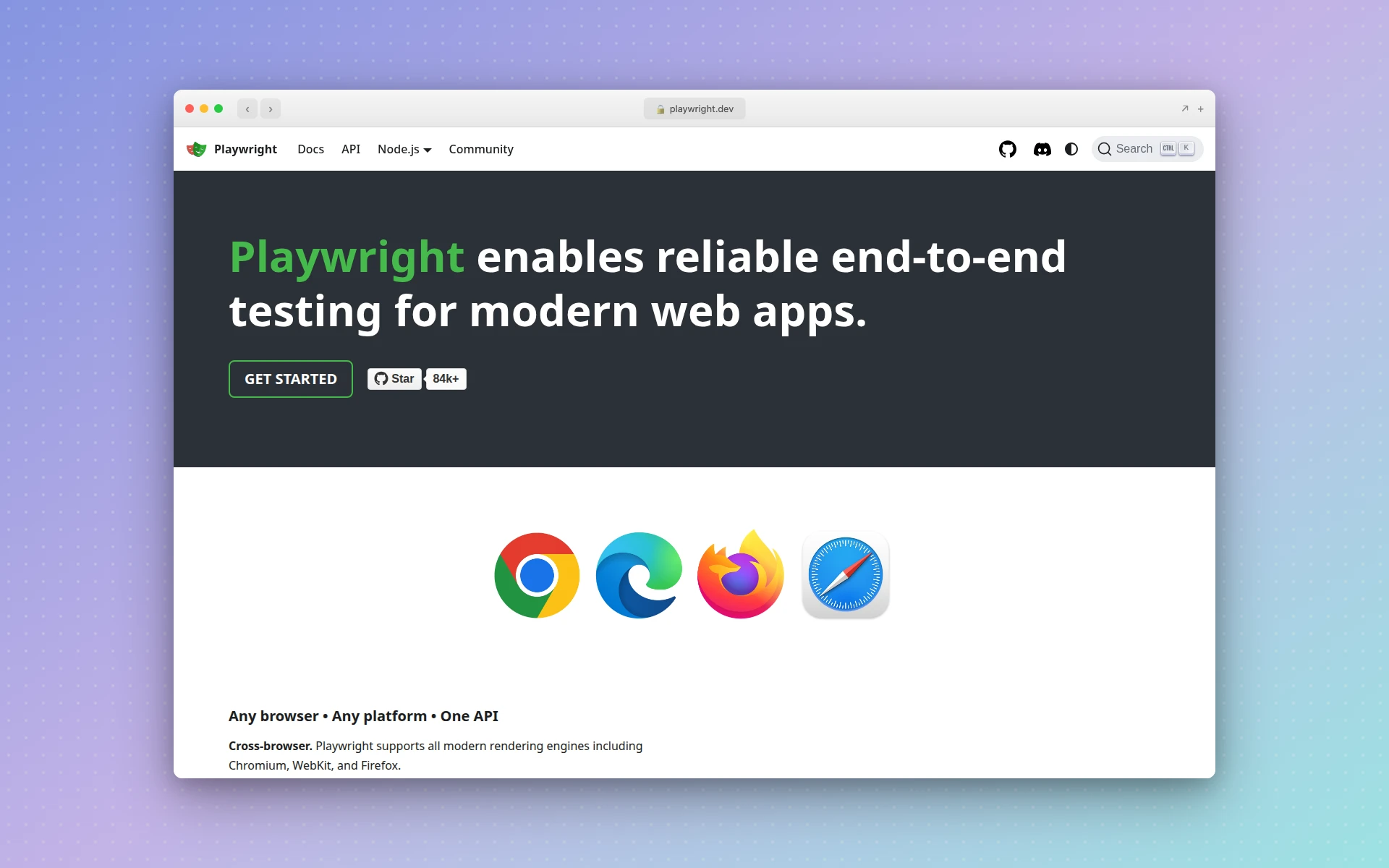 Microsoft’s Playwright MCP server gives AI agents full browser control for testing, scraping, and automation.
Key tools exposed:
navigate— Go to any URL in the browserclick/fill/select— Interact with page elementsscreenshot— Capture full-page or element-specific screenshotsevaluate— Run JavaScript in the page contextget_text— Extract visible text from the page or specific elementswait_for_selector— Wait for elements to appear before interacting
Setup config:
{
  "mcpServers": {
    "playwright": {
      "command": "npx",
      "args": ["-y", "@playwright/mcp@latest"]
    }
  }
}
No API key required — Playwright runs a local browser instance. Use the official @playwright/mcp package from Microsoft; an unscoped playwright-mcp package on npm is a common lookalike, so double-check the scope.
Pros:
- Full browser automation capabilities (not just screenshots)
- Supports Chromium, Firefox, and WebKit
- No API key or external service required
- Can handle complex multi-step workflows (login, navigate, interact, verify)
- Screenshot capability is invaluable for visual debugging
Cons:
- Resource-intensive — runs a full browser process
- Can be slow for complex multi-page workflows
- Some sites block automated browsers (CAPTCHAs, bot detection)
- No built-in session persistence between conversations
Best fit if: You need your AI agent to interact with web applications for testing, visual verification, data extraction, or any workflow that requires a real browser.
8. Puppeteer MCP
Best for: Lightweight headless Chrome automation and web scraping
Repository: modelcontextprotocol/servers (official)
Puppeteer MCP is the lighter alternative to Playwright MCP. It uses Google’s Puppeteer library to control a headless Chrome instance. If you need basic browser automation — taking screenshots, scraping content, generating PDFs — without the full weight of Playwright’s multi-browser support, Puppeteer MCP is the simpler option.
Key tools exposed:
navigate— Load a URL in headless Chromescreenshot— Capture page screenshotsevaluate— Run JavaScript in the pageclick— Click elements on the pagepdf— Generate PDF from the current page
Setup config:
{
  "mcpServers": {
    "puppeteer": {
      "command": "npx",
      "args": ["-y", "@modelcontextprotocol/server-puppeteer"]
    }
  }
}
Pros:
- Lighter than Playwright — faster startup, lower memory usage
- Official Anthropic-maintained server
- Good enough for screenshots, scraping, and basic automation
- No API key required
Cons:
- Chrome/Chromium only (no Firefox or WebKit)
- Fewer automation features than Playwright
- Less robust element selection and waiting mechanisms
- Community is smaller than Playwright’s
Best fit if: You need basic browser automation (screenshots, scraping, PDF generation) without the overhead of a full Playwright setup.
Search MCP Servers
9. Brave Search MCP
Best for: Real-time web search, news, and local results from inside your AI agent
Repository: modelcontextprotocol/servers (official)
Brave Search MCP connects your AI agent to the Brave Search API, giving it the ability to search the web in real time. That changes how coding workflows feel — your agent can look up documentation, find error solutions, check API references, and research libraries without you leaving the conversation.
The Brave Search API offers both web search and local search, with a generous free tier of 2,000 queries per month.
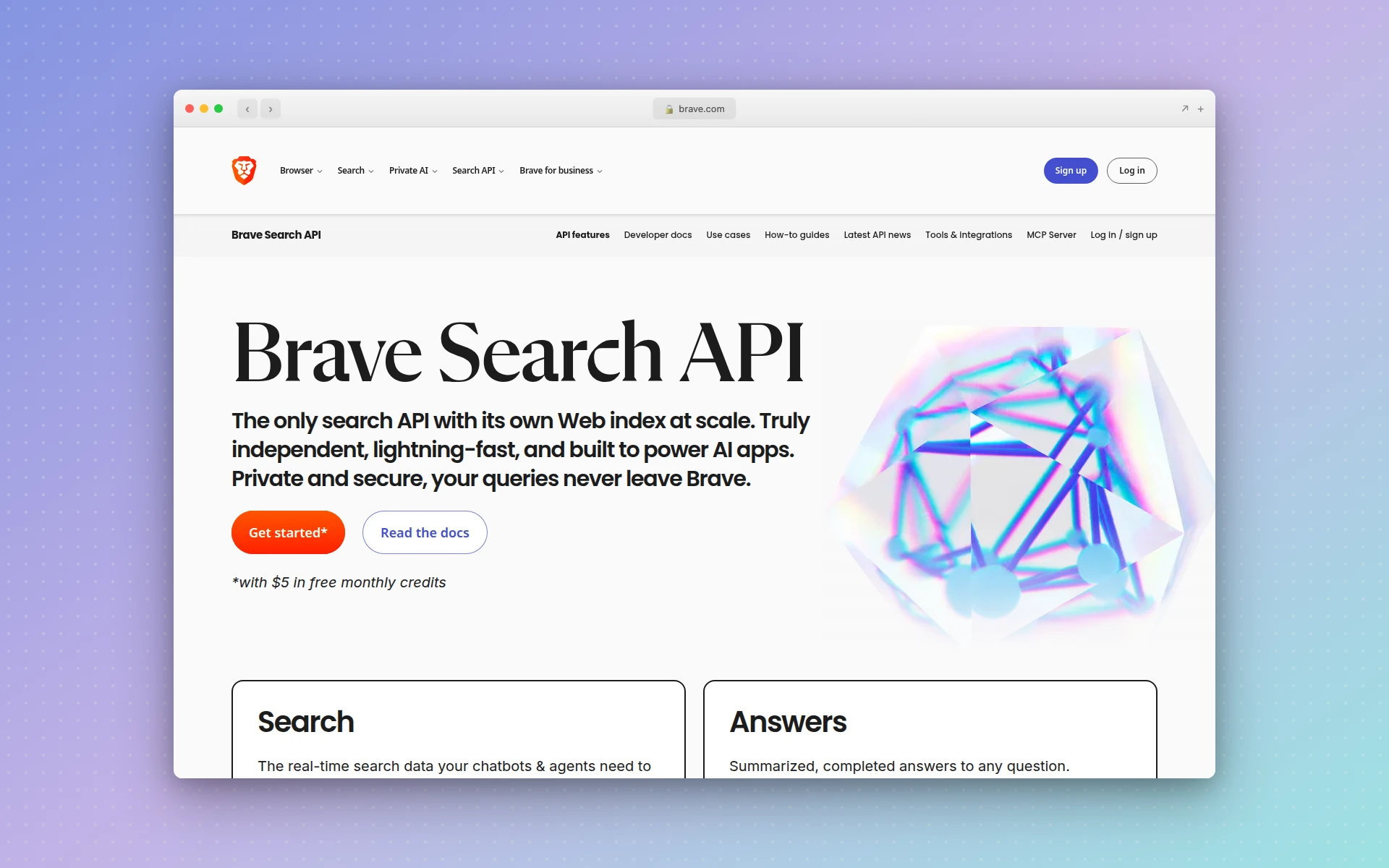 Brave Search API provides privacy-focused web search that AI agents can call during coding conversations.
Key tools exposed:
brave_web_search— Search the web with query, count, and offset parametersbrave_local_search— Search for local businesses and places
Setup config:
{
  "mcpServers": {
    "brave-search": {
      "command": "npx",
      "args": ["-y", "@modelcontextprotocol/server-brave-search"],
      "env": {
        "BRAVE_API_KEY": "your-brave-api-key"
      }
    }
  }
}
Get a free API key at brave.com/search/api — 2,000 queries/month at no cost.
Pros:
- Generous free tier (2,000 queries/month)
- Official Anthropic-maintained server
- Fast, privacy-focused search results
- Supports both web and local search
Cons:
- Results are less comprehensive than Google for some queries
- No image or video search
- 2,000 free queries can run out quickly if your agent searches frequently
Best fit if: You want your AI agent to have real-time web access for documentation lookups, error debugging, and research without paying for a premium search API.
10. Tavily MCP
Best for: AI-optimized web search with structured, high-relevance results
Repository: tavily-ai/tavily-mcp
Tavily is a search API built specifically for LLMs. Unlike traditional search APIs that return web page snippets, Tavily returns structured, highly relevant content that AI models can consume efficiently. The results are pre-processed to extract the most useful information, which means your AI agent gets better answers with fewer search calls.
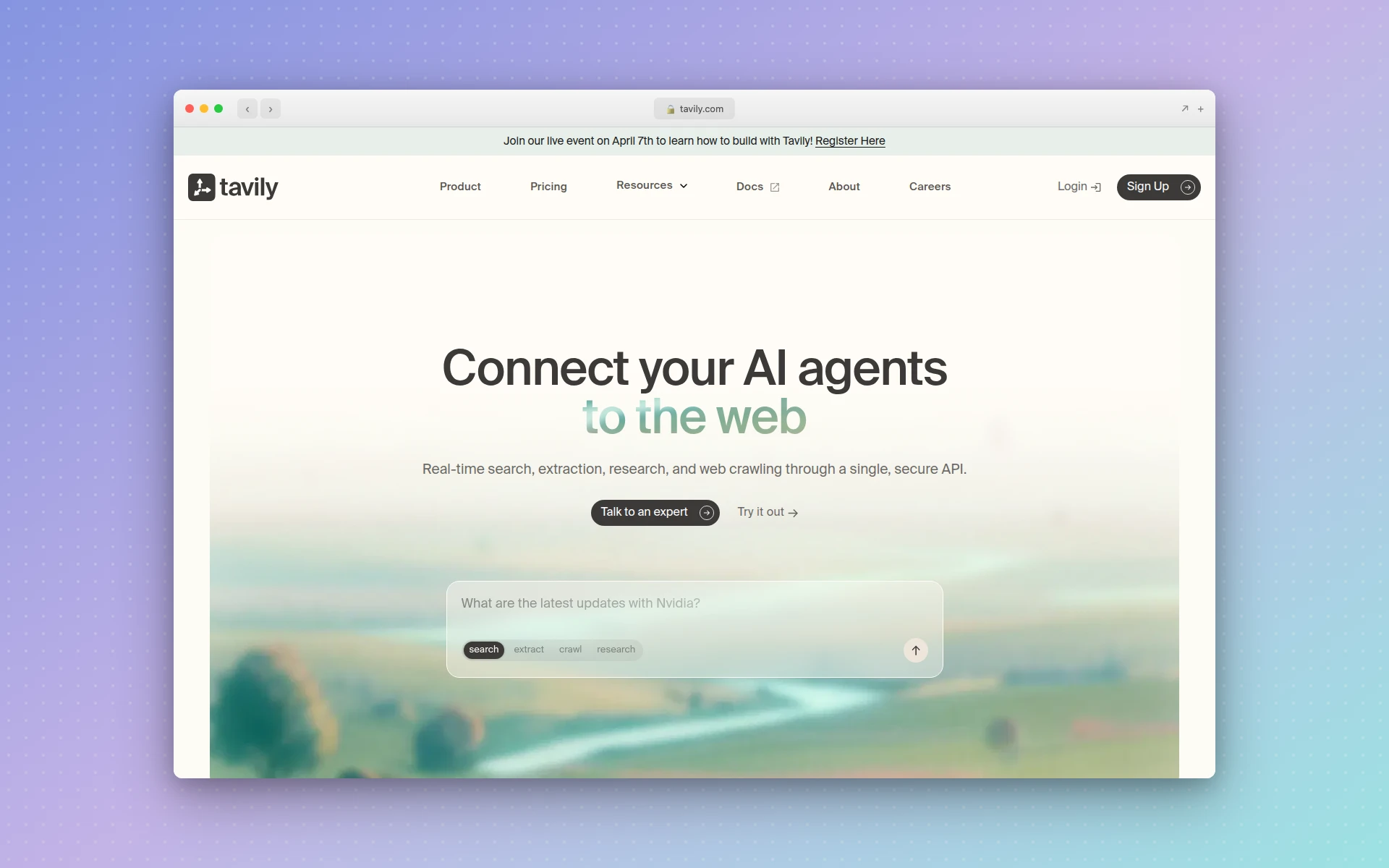 Tavily provides search results specifically formatted for LLM consumption, with higher relevance per query.
Key tools exposed:
search— AI-optimized web search with configurable depth (basic or advanced)extract— Pull structured content from specific URLsget_search_context— Get search results formatted specifically for LLM context windows
Setup config:
{
  "mcpServers": {
    "tavily": {
      "command": "npx",
      "args": ["-y", "tavily-mcp"],
      "env": {
        "TAVILY_API_KEY": "your-tavily-api-key"
      }
    }
  }
}
Tavily offers 1,000 free API calls per month at tavily.com.
Pros:
- Results are optimized for LLM consumption — higher relevance per query
- Advanced search mode extracts full page content, not just snippets
- URL extraction tool is great for pulling specific page data
- 1,000 free searches per month
Cons:
- Smaller index than Brave or Google — may miss niche results
- Advanced search mode is slower (5-10 seconds per query)
- Free tier is more limited than Brave Search
Best fit if: You want the highest quality search results per query and are willing to trade index breadth for result relevance. Tavily excels when your agent needs to research a specific topic deeply.
Productivity MCP Servers
11. Slack MCP
Best for: Reading channels, posting messages, and searching conversation history
Repository: modelcontextprotocol/servers (official)
Slack MCP lets your AI agent interact with your Slack workspace. The most practical use case is context gathering — your agent can search Slack conversations for past decisions, bug reports, or feature requests, then use that context to write better code.
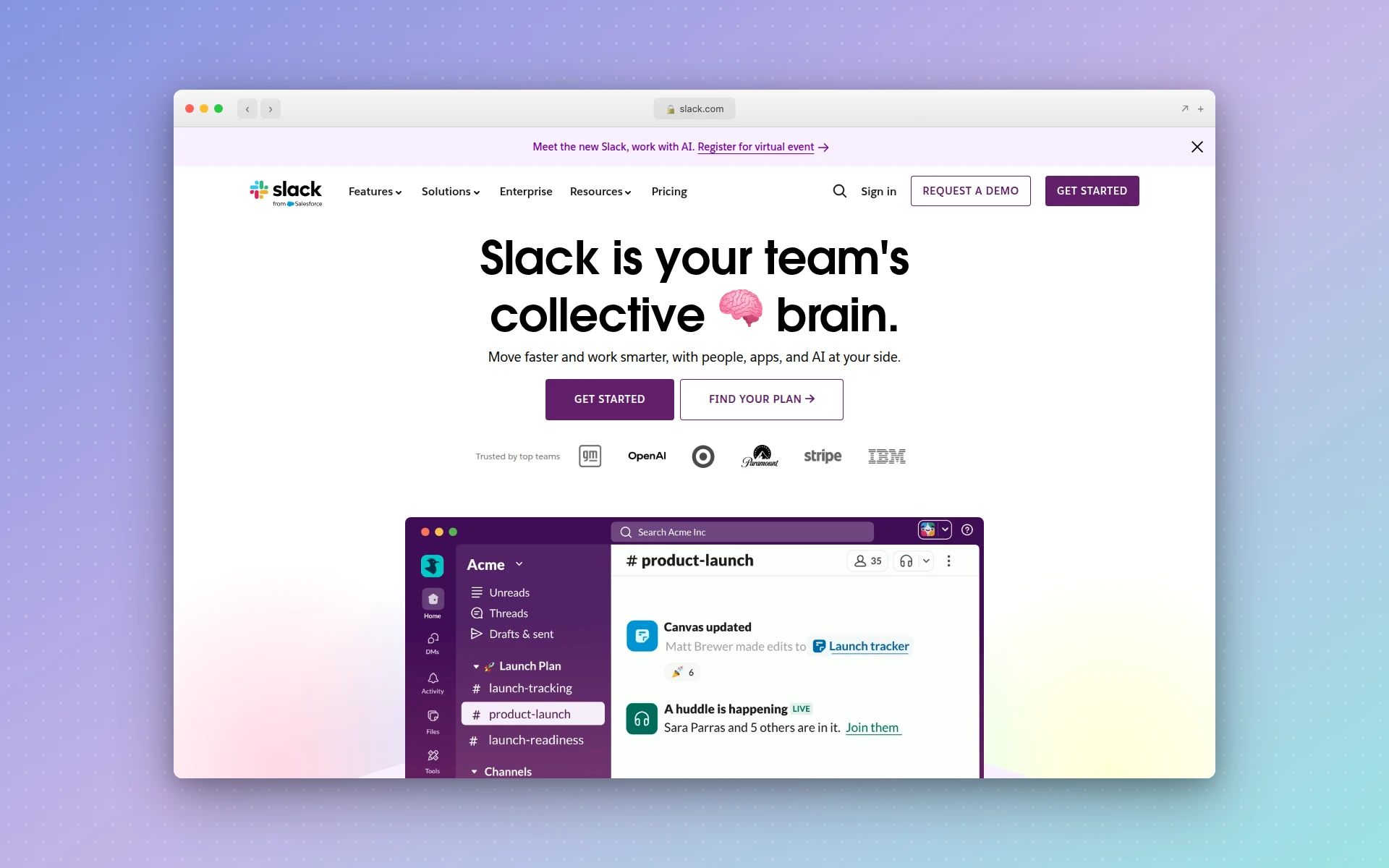 Slack MCP lets AI agents search conversation history and post updates directly from your coding workflow.
Key tools exposed:
list_channels— Browse available channelsread_channel_messages— Read message history from a channelpost_message— Send messages to a channelsearch_messages— Search across all accessible channelsget_thread_replies— Read full thread conversations
Setup config:
{
  "mcpServers": {
    "slack": {
      "command": "npx",
      "args": ["-y", "@modelcontextprotocol/server-slack"],
      "env": {
        "SLACK_BOT_TOKEN": "xoxb-your-bot-token"
      }
    }
  }
}
Create a Slack App at api.slack.com/apps with the required scopes (channels:read, channels:history, chat:write, search:read).
Pros:
- Search across entire Slack history for context
- Post updates and summaries from your AI workflow
- Official Anthropic-maintained server
- Useful for gathering product requirements and past decisions
Cons:
- Requires creating a Slack App with proper permissions
- Bot token management can be complex for enterprise workspaces
- Message posting should be used carefully to avoid noise
Best fit if: Your team communicates through Slack and you want your AI agent to pull context from conversations or post automated updates about development progress.
12. Linear MCP
Best for: Managing issues, sprints, and project tracking from your coding workflow
Repository: linear/linear-mcp
Linear MCP connects your AI agent to Linear, the project management tool favored by engineering teams. The agent can create issues, update statuses, query backlogs, and manage sprint workflows — all from the same conversation where you are writing code.
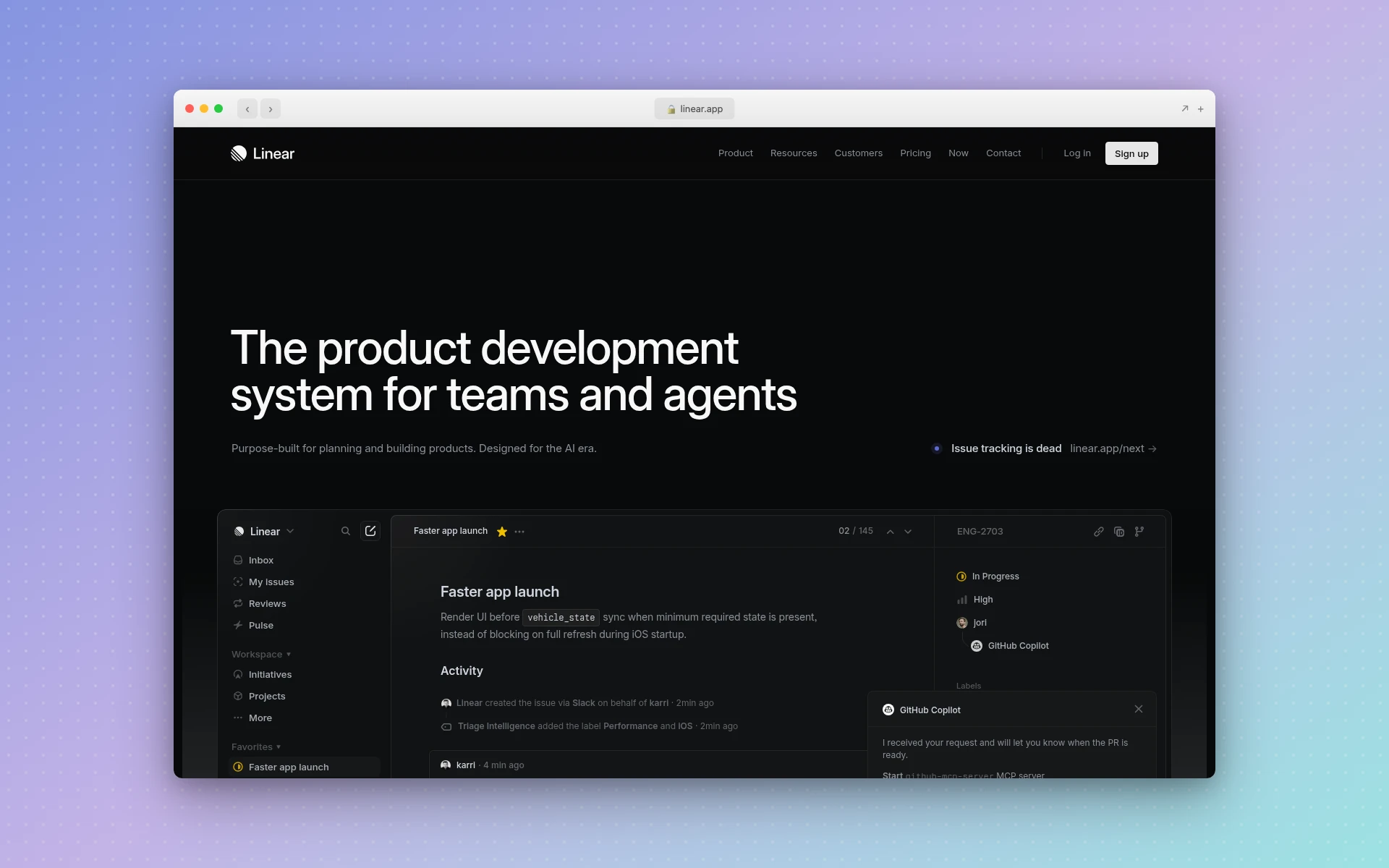 Linear MCP closes the loop between writing code and updating project status.
The killer workflow is this: your AI agent finishes implementing a feature, creates a PR via GitHub MCP, then marks the corresponding Linear issue as “Done” and adds a comment with the PR link. Full automation from code to project management.
Key tools exposed:
create_issue— Create new issues with title, description, labels, and assigneeupdate_issue— Change status, priority, or assigneesearch_issues— Query issues by status, label, or text searchlist_projects— Browse projects and their progressget_issue— Get full issue details including comments and history
Setup config:
{
  "mcpServers": {
    "linear": {
      "command": "npx",
      "args": ["-y", "linear-mcp-server"],
      "env": {
        "LINEAR_API_KEY": "lin_api_your_key_here"
      }
    }
  }
}
Generate an API key at Linear > Settings > API > Personal API Keys.
Pros:
- Tight integration between code and project management
- Bidirectional — read issues for context, update them when work is done
- Supports the full Linear data model (issues, projects, cycles, labels)
Cons:
- Linear-specific — does not work with Jira, Asana, or other PM tools
- Requires care with write operations to avoid accidental status changes
Best fit if: Your team uses Linear for project management and you want to eliminate the context switching between your code editor and your issue tracker.
13. Notion MCP
Best for: Searching pages, reading databases, and managing documentation
Repository: notionhq/notion-mcp
Notion MCP gives your AI agent read and write access to your Notion workspace. This is valuable for teams that keep technical documentation, architecture decisions, API specs, and product requirements in Notion. Your agent can pull this context into coding conversations without you manually copying and pasting.
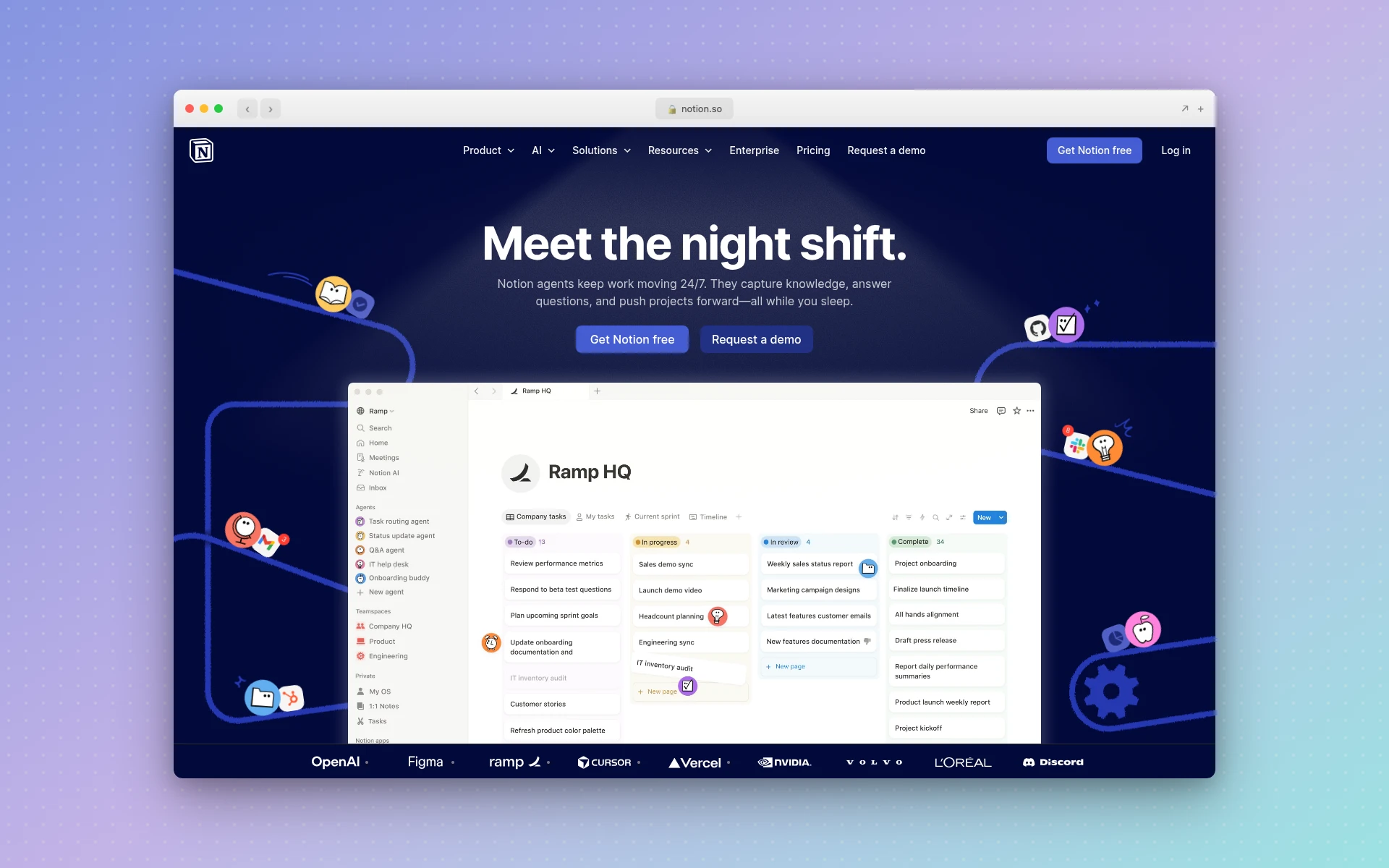 Notion MCP lets AI agents pull documentation and requirements directly into coding context.
Key tools exposed:
search— Search across all pages and databases in the workspaceget_page— Read full page contentquery_database— Query Notion databases with filters and sortscreate_page— Create new pages in a specific parentupdate_page— Modify existing page content
Setup config:
{
  "mcpServers": {
    "notion": {
      "command": "npx",
      "args": ["-y", "notion-mcp-server"],
      "env": {
        "NOTION_API_KEY": "ntn_your_integration_token"
      }
    }
  }
}
Create an internal integration at notion.so/my-integrations and share the relevant pages/databases with the integration.
Pros:
- Pulls documentation and requirements directly into coding context
- Database querying is powerful for structured data
- Can create and update documentation as part of the development workflow
Cons:
- Notion’s block-based content model can be verbose for the AI to process
- Integration must be explicitly shared with each page/database
- Write operations can disrupt carefully formatted Notion pages
Best fit if: Your team stores documentation, specs, and product requirements in Notion and you want your AI agent to reference them during development without manual copy-paste.
Utility MCP Servers
14. Memory MCP
Best for: Giving your AI agent persistent memory across sessions
Repository: modelcontextprotocol/servers (official)
The Memory MCP server solves one of the biggest limitations of AI coding assistants: they forget everything when you start a new conversation. This server provides a persistent knowledge graph that the AI agent can read from and write to, maintaining context about your project, preferences, and past decisions across sessions.
The knowledge graph uses entity-relation triples (like “ProjectX uses React” or “Deploy target is AWS”). Your agent automatically stores important context during conversations and retrieves it in future sessions.
Key tools exposed:
create_entities— Store new entities in the knowledge graphcreate_relations— Define relationships between entitiessearch_nodes— Search the knowledge graph by text queryopen_nodes— Retrieve specific entities by namedelete_entities— Remove outdated information
Setup config:
{
  "mcpServers": {
    "memory": {
      "command": "npx",
      "args": ["-y", "@modelcontextprotocol/server-memory"]
    }
  }
}
No API key required. The knowledge graph is stored as a local JSON file.
Pros:
- Persistent memory across conversations — no more re-explaining your project
- Official Anthropic-maintained server
- No external dependencies or API keys
- Knowledge graph format is efficient for entity-relation storage
Cons:
- Knowledge graph can grow large and noisy without curation
- Agent may over-store trivial information
- Manual cleanup may be needed periodically
- Not a replacement for proper documentation
Best fit if: You work on long-running projects and want your AI agent to remember project-specific context, architecture decisions, and preferences across conversations.
15. Sentry MCP
Best for: Querying production errors, analyzing stack traces, and debugging issues
Repository: sentry-io/sentry-mcp
Sentry MCP connects your AI agent to your Sentry error monitoring platform. When a production bug comes in, your agent can query Sentry for the error details, read the stack trace, check how many users are affected, and then jump into the relevant code to fix it — all in one conversation.
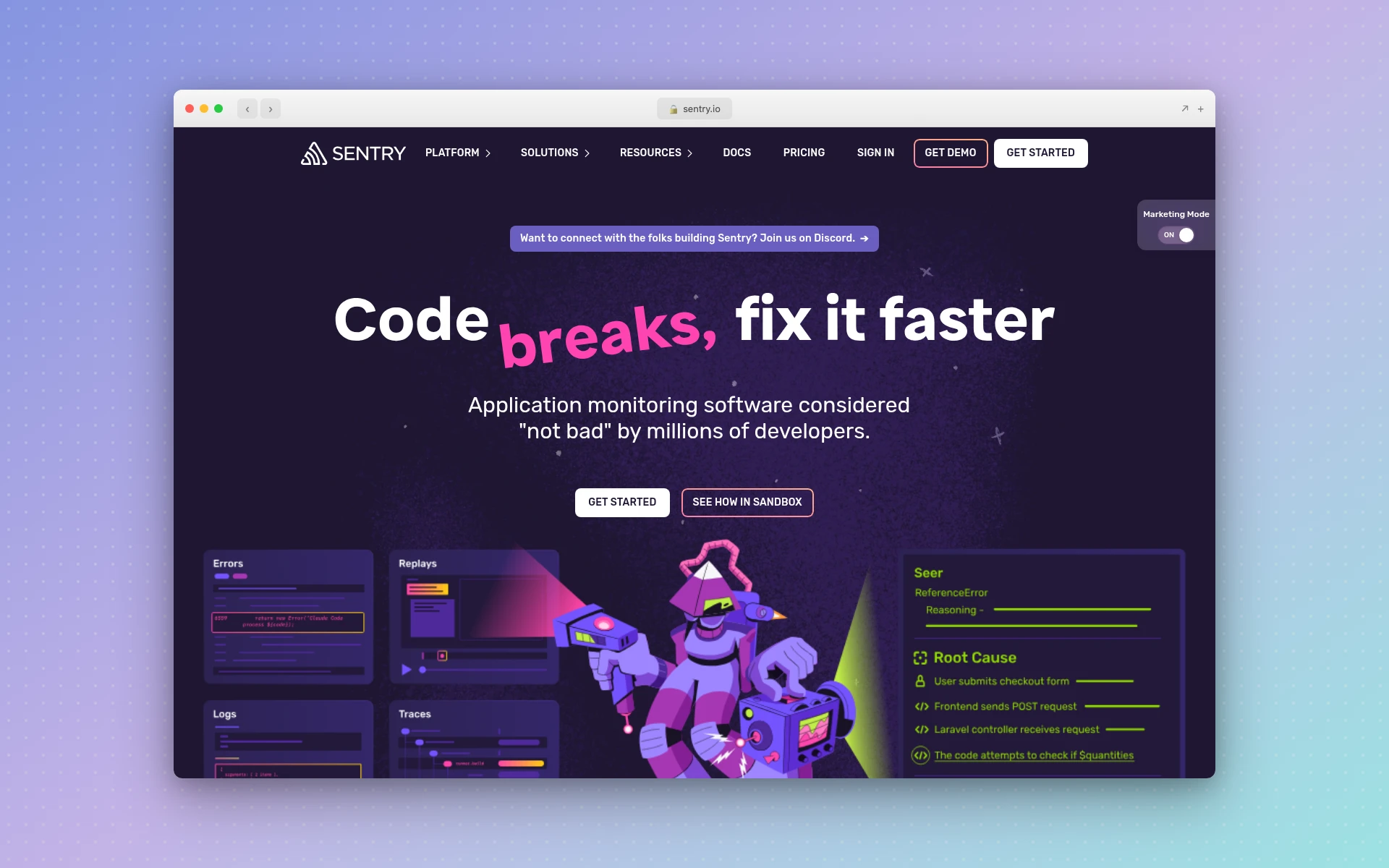 Sentry MCP brings production error data directly into your AI coding workflow for faster debugging.
Key tools exposed:
search_issues— Find errors by query, project, or statusget_issue_details— Get full error details including stack trace and breadcrumbsget_event— Retrieve specific error events with full contextlist_projects— Browse Sentry projects
Setup config:
{
  "mcpServers": {
    "sentry": {
      "command": "npx",
      "args": ["-y", "sentry-mcp-server"],
      "env": {
        "SENTRY_AUTH_TOKEN": "sntrys_your_token_here",
        "SENTRY_ORG": "your-org-slug"
      }
    }
  }
}
Generate an auth token at Sentry > Settings > Auth Tokens.
Pros:
- Direct access to production error data from your coding environment
- Stack traces give the AI agent precise context for debugging
- Reduces time-to-fix by eliminating context switching to the Sentry dashboard
Cons:
- Sentry-specific — does not work with other error monitoring tools
- Auth token management requires care in shared environments
Best fit if: You use Sentry for error monitoring and want to close the loop between “error detected” and “error fixed” entirely within your AI coding workflow.
How to Choose the Right MCP Servers
You do not need all 15 servers. Most developers run 3-5 that match their daily workflow. Here is how to pick:
By role:
| Role | Essential Servers | Nice to Have |
|---|---|---|
| Frontend developer | Figma MCP, AIDesigner MCP, GitHub MCP, Playwright MCP | Brave Search, Memory |
| Full-stack developer | GitHub MCP, AIDesigner MCP, Supabase/PostgreSQL MCP, Playwright MCP | Figma MCP, Sentry |
| Solo founder / indie hacker | AIDesigner MCP, GitHub MCP, Supabase MCP | Brave Search, Memory |
| Team lead / PM-adjacent | GitHub MCP, Linear MCP, Slack MCP | Notion, Sentry |
By project type:
| Project | Recommended Stack |
|---|---|
| SaaS product | GitHub + Supabase + Sentry + Playwright + AIDesigner |
| Marketing site | AIDesigner + Figma + GitHub + Brave Search |
| Open-source library | GitHub + Filesystem + Brave Search |
| Mobile app frontend | Figma + AIDesigner + GitHub |
| Data-heavy application | PostgreSQL + GitHub + Memory + Sentry |
How Much Do MCP Servers Cost?
Most MCP servers are completely free to install and run. The servers themselves are open-source, and they execute locally on your machine. The only costs come from the underlying services they connect to.
Here is the cost breakdown:
| Server | Server Cost | Service Cost |
|---|---|---|
| GitHub MCP | Free | Free (GitHub account) |
| Filesystem MCP | Free | Free (local files) |
| Playwright MCP | Free | Free (local browser) |
| Puppeteer MCP | Free | Free (local browser) |
| Memory MCP | Free | Free (local storage) |
| Brave Search MCP | Free | Free (2,000 queries/mo) |
| Tavily MCP | Free | Free (1,000 queries/mo) |
| Figma MCP | Free | Free (Figma account) |
| Supabase MCP | Free | Free tier available |
| PostgreSQL MCP | Free | Varies by hosting |
| AIDesigner MCP | Free | Free (5 credits), Pro from $25/mo |
| Slack MCP | Free | Free (Slack workspace) |
| Linear MCP | Free | Free tier available |
| Notion MCP | Free | Free tier available |
| Sentry MCP | Free | Free tier (5K errors/mo) |
For most developers, the entire MCP server setup costs nothing beyond the services they already pay for.
Can AI Coding Tools Use Multiple MCP Servers Together?
Yes, and this is where MCP gets truly powerful. You can configure multiple servers simultaneously, and your AI agent will choose the right tool from the right server based on your request. There is no interference between servers — each operates independently.
A typical multi-server conversation might look like this:
- “Check the Linear issue for the new dashboard feature” (Linear MCP)
- “Look at the Figma designs for this feature” (Figma MCP)
- “Generate a polished dashboard layout based on those designs” (AIDesigner MCP)
- “Create the React components, commit to a new branch, and open a PR” (GitHub MCP)
- “Run the test suite and screenshot the result” (Playwright MCP)
- “Mark the Linear issue as done and post an update in Slack” (Linear MCP + Slack MCP)
Six different servers, one continuous conversation. This is the power of a standardized protocol.
How to Set Up MCP Servers (Step by Step)
Step 1: Choose Your AI Client
MCP servers work with these AI coding tools:
- Claude Code — Terminal-based, configures in
~/.claude/settings.json - Cursor — IDE-based, configures in
.cursor/mcp.json - Windsurf — IDE-based, configures in
~/.codeium/windsurf/mcp_config.json
Step 2: Install Node.js
Most MCP servers run via npx, which requires Node.js 18+. Verify your installation:
node --version # Should be 18.0.0 or higher
Step 3: Create Your Config File
Create the appropriate config file for your client and add your servers. Remote servers (GitHub, Figma, AIDesigner) authenticate over OAuth, so there are no tokens to paste:
{
  "mcpServers": {
    "github": {
      "type": "http",
      "url": "https://api.githubcopilot.com/mcp/"
    },
    "figma": {
      "type": "http",
      "url": "https://mcp.figma.com/mcp"
    }
  }
}
Step 4: Restart Your AI Client
After saving the config file, restart Claude Code, Cursor, or Windsurf. The servers will start automatically and the AI agent will discover their tools on startup.
Step 5: Verify the Connection
Ask your AI agent to list its available tools. In Claude Code, you can type /mcp to see all connected servers and their status. In Cursor, check the MCP panel in settings.
For the full protocol specification and more example servers, see the official MCP documentation and the MCP GitHub organization.
Frequently Asked Questions
What is an MCP server?
An MCP server is a lightweight program that exposes tools, resources, and prompts to AI coding assistants through Anthropic’s Model Context Protocol. It acts as a bridge between your AI agent and external services like GitHub, Figma, databases, and browsers, letting the AI take actions on your behalf instead of just generating text.
Which AI coding tools support MCP?
Claude Code, Cursor, and Windsurf all support MCP servers natively. Claude Code uses a .claude/settings.json or claude_desktop_config.json file. Cursor uses a .cursor/mcp.json file in your project root. Windsurf uses a similar JSON configuration. VS Code with GitHub Copilot also supports MCP through its Chat panel.
Are MCP servers free?
Most MCP servers are open-source and free to install. The servers themselves run locally on your machine or connect to APIs you already pay for. For example, the GitHub MCP server is free but uses your GitHub API token. The Supabase MCP server is free but connects to your Supabase project. The only costs are the underlying services.
How many MCP servers can I run at once?
There is no hard limit on how many MCP servers you can configure simultaneously. Most developers run 3-5 servers covering their core workflow — typically a code server like GitHub, a database server, a browser server, and one or two productivity servers. Adding too many can slow down tool discovery in your AI assistant.
What is the difference between MCP and regular API integrations?
MCP provides a standardized protocol that any AI assistant can use, while regular API integrations require custom code for each tool and each AI model. With MCP, you configure a server once and it works across Claude Code, Cursor, and Windsurf. Without MCP, you would need separate plugins or extensions for each combination of tool and AI client.
Is the Figma MCP server official?
Yes. Figma ships an official Dev Mode MCP server, launched in June 2025, with bidirectional Claude Code integration added in February 2026. It streams your file’s components, variables, layout data, and full layer tree into AI coding tools like Claude Code, Cursor, VS Code, and Windsurf so they can generate code from selected frames. A separate community server, Framelink (figma-developer-mcp), is also popular but is not made by Figma.
Conclusion
MCP servers transform AI coding tools from smart text editors into fully integrated development environments. The protocol is still young — it launched in late 2024 — but the ecosystem has already matured to the point where you can cover your entire workflow: design (Figma MCP, AIDesigner MCP), code (GitHub MCP), data (Supabase, PostgreSQL), browser automation (Playwright), and team coordination (Slack, Linear, Notion).
Start with the three servers that match your daily workflow. For most developers, that is GitHub MCP, one database server, and one browser or search server. Add design servers if you work with UI, and productivity servers if you want to close the loop between project management and code. For an even deeper level of customization, you can build Claude Code skills — reusable markdown-driven workflows that let your AI agent execute multi-step tasks like SEO pipelines, content generation, and code scaffolding on autopilot.
The best part: the setup takes five minutes and costs nothing. Every server in this guide runs locally, uses the same JSON configuration format, and works across Claude Code, Cursor, and Windsurf. There is no lock-in and no vendor dependency.
If you are building UI-heavy applications and want to generate production-ready designs without leaving your coding environment, try AIDesigner’s MCP server — it turns a text prompt into a polished interface in seconds.